
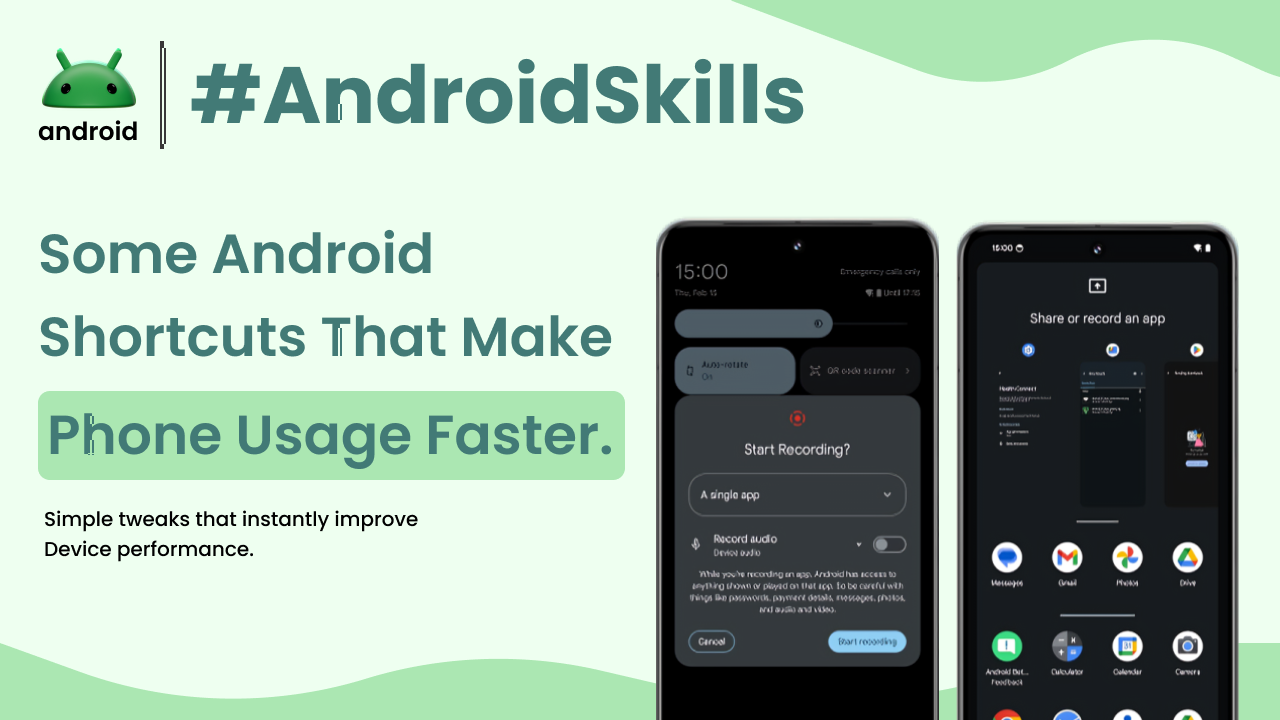
Ever feel like you’re spending just a little too much time tapping and swiping through menus on your Android phone? It’s a common feeling, especially with how much we rely on our devices every day. What if I told you there are clever little tricks, hidden in plain sight, that can shave off those precious seconds and make your whole phone experience feel much smoother and faster? As someone who lives and breathes Android, constantly exploring ways to make my own device work for me, I’ve found that mastering these shortcuts truly transforms how you interact with your phone.
We’re not talking about anything complicated or tech-heavy here. Think of them as smart moves your phone already knows, just waiting for you to discover and use them. They help you jump straight to what you need, control settings with a flick, or even multitask like a pro. For anyone just starting out with Android, or even if you’ve been using one for ages, learning these shortcuts can make a world of difference in your daily mobile life. It’s all about working smarter, not harder, with the device in your hand. If you’re curious about the very foundations of your device, understanding What Is Android and How It Works on Smartphones ? can provide even more clarity on its capabilities.
Navigating with a Flick: Mastering Android Gestures
Modern Android phones largely embrace a gesture-based navigation system, moving away from the traditional three on-screen buttons. This change wasn’t just for looks; it makes navigating feel incredibly fluid and frees up valuable screen space. Once you get the hang of it, you’ll wonder how you ever managed without it.
The Basic Swipe Language: Home, Back, Recent Apps
The core of gesture navigation is quite intuitive. To go back to your home screen from anywhere, you simply swipe up from the very bottom edge of your screen. It’s a clean, quick motion. If you need to go back to the previous screen, a quick swipe in from either the left or right edge of your display does the trick. It’s much faster than hunting for a back button. And when you want to see all your currently open apps – maybe to switch between them or close one down – swipe up from the bottom and hold your finger for a moment. This opens your “Recent Apps” or “Overview” screen.
Quick App Switching: Jumping Between Tasks Effortlessly
One of my absolute favorite gesture shortcuts is the fast app flip. If you’re constantly bouncing between two apps, say copying a number from your banking app to a messaging app, this is a game-changer. With gesture navigation enabled, just flick your finger horizontally to the right along the very bottom edge of your screen. Your phone instantly zips back to the app you had open most recently. Swipe right again, and you go further back in your app history. It’s incredibly handy for multitasking without breaking your flow. If you still use the old three-button navigation, a double-tap on the recent apps button achieves a similar, instant switch.
Beyond the Basics: Handy Device Gestures
Beyond navigation, many Android phones offer specific gestures for common tasks. For instance, a simple double-tap on your phone’s screen can often wake it up without needing to press the power button. Some devices let you flip your phone face down to silence an incoming call or mute notifications, a subtle yet effective way to get a moment of peace. Newer Android versions even have a “Quick Tap” or “Back Tap” feature, turning the back of your phone into a customizable button. A double-tap on the back can be set to take a screenshot, open your favorite app, or toggle the flashlight – super convenient once you set it up.
Instant Access: Customizing Your Quick Settings Panel
The Quick Settings panel is that handy menu you pull down from the top of your screen. It’s filled with toggles for Wi-Fi, Bluetooth, flashlight, and more. Think of it as your control center for frequently used phone features. Most people just use the default layout, but did you know you can completely personalize it to your liking?
Organizing Your Essentials: Adding, Removing, and Rearranging Tiles
This is where the real time-saving begins. Instead of diving into the main Settings app for every minor adjustment, you can put your most-used toggles right at your fingertips. To customize it, simply swipe down twice from the top of your screen to fully expand the Quick Settings panel. Look for a small pencil icon or an “Edit” button – its exact location might vary slightly depending on your phone model. Tapping this lets you drag and drop icons to rearrange their order, remove ones you rarely use, and add new ones from a list of available options. For example, if you frequently cast your screen or use the hotspot, you can place those toggles upfront. Being able to access these settings quickly, without navigating through layers of menus, is a small change that adds up to a lot of saved time. For a deeper dive into adjusting these settings, you can check out the official Google Help guide on changing settings quickly on your Android phone.
Two-Finger Swipe for Speedy Access
Here’s another neat trick: if you swipe down from the top of your screen with *two fingers* instead of one, the Quick Settings panel immediately expands to its full view, skipping the initial smaller notification shade. This might seem minor, but when you’re in a hurry and need to access a specific toggle instantly, that single, deliberate two-finger swipe can feel incredibly efficient.
App-Specific Power-Ups: Long Press Shortcuts
Your home screen isn’t just for launching apps. Many app icons hide powerful shortcuts that can jump you directly to specific functions within the app, saving you multiple taps.
Direct Actions from Your Home Screen
Try this: long-press on an app icon on your home screen or in your app drawer. If the app supports it, a small menu will pop up with a list of quick actions. For instance, long-pressing the Chrome icon might give you options to open a new incognito tab or a new regular tab directly. A long-press on your camera app could offer to open straight into selfie mode or video recording. Messaging apps often let you jump right into a conversation with a frequent contact or start a new chat. These “app shortcuts” are incredibly context-aware and can seriously streamline your workflow, letting you bypass the app’s main screen entirely.
Widgets: Information at a Glance
While not a “shortcut” in the tapping sense, widgets are a fantastic way to access information or perform quick actions without even opening an app. They live right on your home screen. A weather widget shows you the forecast instantly. A music player widget lets you control playback without unlocking your phone or launching the app. Your calendar widget can display upcoming events. To add one, long-press on an empty space on your home screen, tap “Widgets,” and then browse through the options. It’s a great way to personalize your device for maximum efficiency and see important details at a glance.
Voice Commands: Your Personal Android Assistant
Sometimes, the fastest shortcut isn’t a tap or a swipe, but simply speaking. Google Assistant is built right into your Android phone and can perform a surprising number of tasks with just your voice.
“Hey Google”: Hands-Free Control for Everyday Tasks
Just say “Hey Google” (or “Okay Google”) followed by your command, and your phone springs to life, ready to help. Need to set a timer while your hands are busy cooking? “Hey Google, set a timer for 10 minutes.” Want to quickly check the weather? “Hey Google, what’s the weather like today?” You can send messages, make calls, play music, or even get directions, all without touching your screen. This hands-free capability is a massive time-saver, especially when you’re driving, exercising, or otherwise occupied. It’s like having a personal assistant living inside your phone, always ready to lend a digital hand.
Smart Lock and Security Shortcuts
Unlocking your phone dozens of times a day can feel repetitive. Android offers several smart features to make this process faster and more secure.
Fingerprint and Face Unlock: Seamless Entry
Most modern Android phones come with fingerprint sensors or face unlock capabilities. Setting these up makes accessing your phone incredibly fast – often a fraction of a second. Instead of typing in a PIN or drawing a pattern every single time, a quick touch or glance gets you right into your device. It’s not just a convenience; it’s a strong security measure that doesn’t slow you down.
Smart Lock: Keeping Your Phone Open in Trusted Places
Smart Lock is another clever feature that keeps your phone unlocked when it’s in a safe environment. You can set it to stay unlocked when it’s connected to a trusted Bluetooth device (like your car’s stereo or smartwatch), when you’re at a specific trusted location (like your home or office), or even when it detects that it’s physically on you (On-body detection). This means you don’t have to unlock your phone repeatedly when you know it’s safe, but it will automatically lock itself when you leave these trusted conditions.
Multitasking Made Easy: Split Screen and Picture-in-Picture
Android has long been capable of true multitasking, allowing you to use two apps at once or keep a video playing while you do something else. These aren’t always obvious features, but they are incredibly useful shortcuts for productivity.
Using Apps Side-by-Side and Overlaid
Split-screen mode lets you view and interact with two apps simultaneously on your screen. Imagine watching a YouTube video while taking notes, or having your calculator open alongside a spreadsheet. To activate it, open your first app, then go to your recent apps screen (swipe up and hold from the bottom, or tap the recent apps button). Tap on the icon of the *first* app at the top of its window, and select “Split screen” from the options. Then, choose the second app you want to use. This arrangement greatly enhances productivity for certain tasks.
Picture-in-Picture (PiP) is another brilliant multitasking shortcut, especially for media consumption. It allows videos (from apps like YouTube, Netflix, or Google Maps navigation) to shrink into a small, movable window that floats over other apps. This means you can keep watching your show or following directions while checking emails or browsing the web. Usually, you just start playing a video in a compatible app and then navigate back to your home screen or another app; the video will automatically shrink into a PiP window.
Thoughtful Touches for a Smoother Experience
Beyond the main categories, Android is packed with smaller, often overlooked settings and gestures that can quietly boost your phone’s responsiveness and ease of use.
Notification Management: Taking Control
Notifications can quickly become overwhelming. Instead of letting them interrupt you constantly, take a moment to manage them. Long-press on a notification as it appears, or go to Settings > Apps & Notifications, then select an app. Here, you can customize which types of alerts you receive, silence less important ones, or turn them off completely for specific apps. This small adjustment prevents unnecessary distractions and ensures you only see what truly matters, making your phone usage feel less chaotic.
One-Handed Mode: Comfort on Larger Screens
With phones getting bigger, reaching the top of the screen with one hand can be a stretch. Many Android devices offer a “one-handed mode” shortcut. Typically, this can be activated by a quick swipe down on the gesture bar, or in some cases, a specific gesture like swiping down diagonally from a corner, which shrinks the usable screen area closer to your thumb. It’s perfect for those moments when you’re holding a coffee or grocery bag and still need to text back quickly.
Developer Options for Subtle Speed Boosts
This one is a bit more advanced and requires a slight disclaimer: proceed with caution! But if you’re comfortable, there’s a neat trick in the “Developer options” menu that can make your phone *feel* snappier. First, you need to unlock this hidden menu by going to Settings > About phone and tapping “Build number” seven times. Once enabled, go to Settings > System > Developer options. Scroll down to “Window animation scale,” “Transition animation scale,” and “Animator duration scale.” By changing these from 1x to .5x, or even turning them off completely, your phone’s animations will speed up or disappear, making everything appear to happen instantly. It doesn’t actually make your phone *process* information faster, but the visual effect is a noticeable boost in perceived speed.
Final Conclusion
There you have it – a comprehensive look at how Android shortcuts can truly revolutionize your phone experience. From the elegant simplicity of gesture navigation to the power of app-specific long presses, and the sheer convenience of voice commands, these features are designed to save you time and make your daily interactions with your device more intuitive. Taking a little time to customize your Quick Settings panel, exploring Smart Lock options, or even delving into split-screen multitasking can genuinely transform your Android phone from a simple gadget into a finely tuned productivity machine. It’s about personalizing your digital space to match your habits, making every tap, swipe, and spoken command count. Embrace these shortcuts, and you’ll soon wonder how you ever got by without them. For even more ways to master your Android device, feel free to explore androidskillspro.in.