
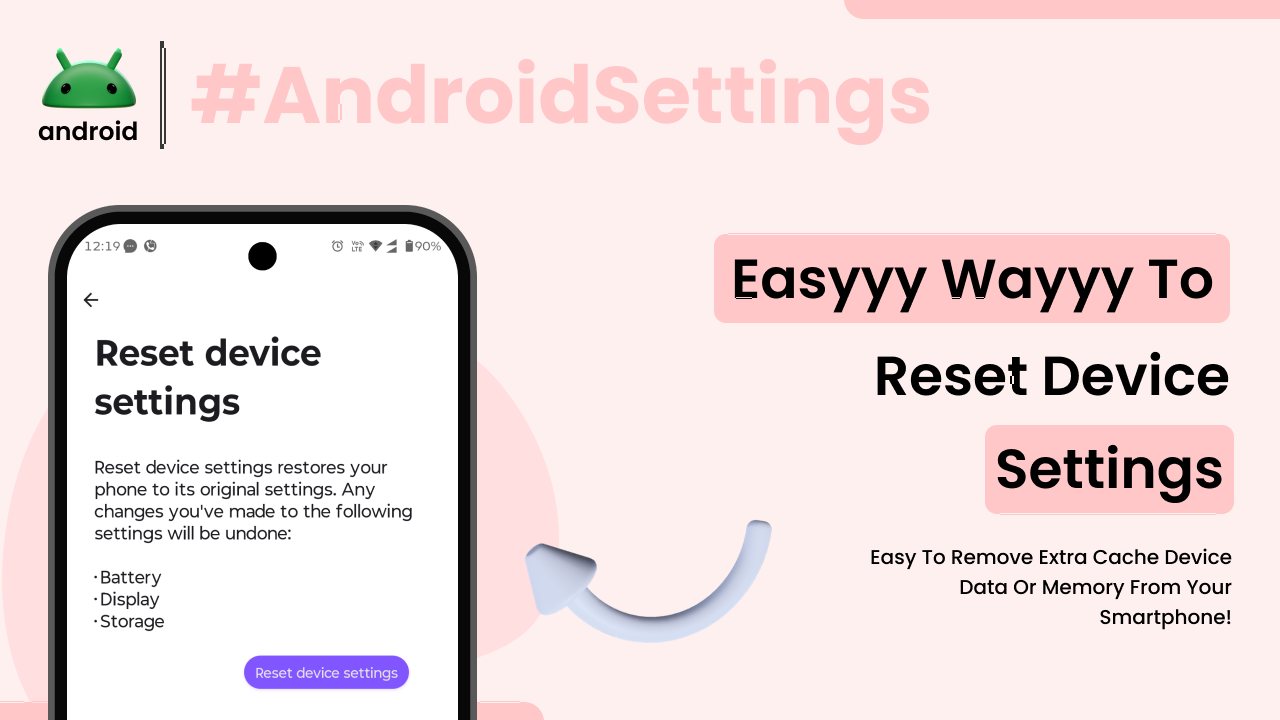
When your Android phone starts acting up – apps crashing, Wi-Fi refusing to connect, or just generally feeling sluggish – a reset might seem like the only solution. But before you jump to a full factory reset, which wipes everything, there are actually several safer, more targeted ways to reset your Android settings. These methods can often fix problems without the drastic step of erasing all your data. Let’s explore how you can safely reset different aspects of your Android phone’s settings.
Understanding Different Types of Resets
It’s important to know that “reset” isn’t a one-size-fits-all term when it comes to Android. You have options ranging from resetting just network settings to wiping everything clean. Understanding these differences is key to fixing your issue without losing important files or photos.
Resetting Network Settings
This is often the first port of call for connectivity problems. If you’re having trouble with Wi-Fi, Bluetooth, or mobile data, resetting your network settings can work wonders. It won’t delete your apps or personal files.
What it does: This action essentially removes all saved Wi-Fi networks and their passwords, Bluetooth pairings, and cellular data settings. Your phone will forget all the networks it knew and all the devices it was paired with.
Why it helps: Sometimes, corrupted network configurations or outdated saved settings can cause persistent connection issues. Clearing these out forces your phone to re-establish connections from scratch, often resolving the problem. Think of it like forgetting all your saved Wi-Fi spots and having to re-enter them – it clears out any digital “dust” that was causing a bad connection.
How to do it: The exact steps can vary slightly between Android versions and manufacturers, but generally, you’ll find this option under “Settings,” then “System” or “General Management,” and then “Reset” or “Reset options.” Look for “Reset network settings.” You’ll usually get a confirmation prompt warning you about what will be reset.
Resetting App Preferences
This is another useful reset that targets app-specific issues without affecting your data. If a particular app is misbehaving, or if you’re facing strange permission-related problems, resetting app preferences can be a good step.
What it does: This resets all your disabled apps to be enabled, all default app settings to their defaults, and all background data restrictions to their defaults. It also clears any app permissions you might have changed.
Why it helps: Imagine you’ve tinkered with a lot of app settings over time, or maybe an app update changed something unexpectedly. Resetting app preferences puts all apps back to their default state regarding permissions, notifications, and background data usage. This can resolve conflicts or settings that were causing an app to behave incorrectly. For instance, if an app isn’t getting notifications, but you’re sure you allowed them, resetting preferences might fix a deeper setting that was inadvertently blocking them.
How to do it: Again, navigate to “Settings,” then “Apps” or “Applications.” You might need to tap on “See all apps” or a similar option. Then, look for a menu (often three dots in the top corner) and find “Reset app preferences.”
Resetting Keyboard Dictionary
Typing issues can be frustrating. If your keyboard keeps suggesting odd words, autocorrect is going haywire, or it’s not learning new words properly, resetting the keyboard dictionary might be the fix.
What it does: This action deletes all the words your keyboard has learned and added to its personal dictionary. It doesn’t affect your keyboard settings like theme or layout, just the custom words you’ve added or that it has learned.
Why it helps: Over time, the keyboard dictionary can accumulate errors or learn incorrect words, especially if you frequently mistype certain words. Resetting it clears out these learned words, giving you a clean slate. It’s like clearing out a notebook where you wrote down definitions, but some were scribbled incorrectly, forcing you to start a fresh, clean page.
How to do it: This is usually found within your keyboard’s settings. If you’re using the default Gboard, go to “Settings,” then “System” or “General Management,” then “Languages & input,” and find your keyboard. Look for an option like “Reset learned words” or “Reset keyboard dictionary.”
When to Consider a More Comprehensive Reset
While the targeted resets above are great for specific issues, sometimes a broader reset is needed for more persistent or system-wide problems.
Resetting All Settings (Without Data Loss)
Some phones offer an option to reset all system settings without deleting your personal data like photos, videos, or apps. This is a more thorough reset than just network or app preferences but less drastic than a factory reset.
What it does: This resets all system settings to their default values. This includes things like display brightness, sound volumes, system-wide app defaults, and other configurations. It does *not* delete your downloaded apps, photos, videos, music, or documents.
Why it helps: If you’re experiencing general system instability, odd behavior across multiple apps, or just want to start fresh with your phone’s configuration without losing your important files, this is a good option. It’s like taking your entire house apart and putting it back together with all the furniture in its original place, but making sure every wire and pipe is connected correctly again.
How to do it: This option can be a bit trickier to find and isn’t available on all devices. It’s often buried within the “Reset options” under “System” or “General Management” in the main Settings menu. If you don’t see it explicitly, it might not be a feature offered by your phone’s manufacturer.
The Last Resort: Factory Data Reset
This is the most drastic reset and should only be performed when all other options have failed or when you’re preparing to sell or give away your phone.
What it does: A factory data reset wipes your entire phone clean, returning it to the state it was in when it first came out of the box. This includes all your apps, accounts, photos, videos, music, messages, and all other personal data.
Why it helps: This is the ultimate troubleshooting step for severe software issues that cannot be resolved by any other method. If your phone is constantly crashing, freezing, or exhibiting very strange behavior, a factory reset can often resolve deep-seated software problems. It’s the equivalent of completely clearing out a messy room and starting with an empty space to organize everything perfectly again.
Before you proceed: **BACK UP EVERYTHING!** Seriously, ensure you have backed up all your important photos, contacts, messages, and any other data you don’t want to lose. You can use Google Drive, Google Photos, or other cloud backup services.
How to do it:
1. Go to “Settings.”
2. Navigate to “System” or “General Management.”
3. Tap on “Reset” or “Reset options.”
4. Select “Factory data reset.”
5. Read the warning carefully and confirm. You’ll likely need to enter your device PIN or password.
The process can take some time, and your phone will restart multiple times. After it’s done, you’ll go through the initial setup process again, just like when you first got the phone.
Safety First: Tips for a Smooth Reset Experience
Regardless of which type of reset you choose, there are a few universal tips to ensure a safe and smooth experience.
Ensure Your Phone is Charged
This might sound basic, but it’s crucial. A reset process can be power-intensive. If your phone battery dies mid-reset, it could potentially lead to more serious issues, though modern Android versions are quite robust. It’s always best to have your phone plugged in or at least have a high battery percentage (ideally 80% or more).
Know What Each Reset Does
As we’ve discussed, each reset option has a different impact. Before tapping that reset button, take a moment to understand precisely what data or settings will be affected. This prevents accidental data loss and ensures you’re performing the right action for your specific problem.
Back Up Important Data
This cannot be stressed enough, especially if you’re considering a factory reset. Even for less severe resets, it’s good practice to back up your photos, contacts, and important documents regularly. Services like Google Photos for pictures and Google Contacts for your address book are invaluable.
Check for System Updates
Sometimes, the issues you’re facing might be due to a known bug that has already been fixed in a newer Android version. Before resorting to a reset, check if there are any pending system updates. Go to “Settings” > “System” > “System update” (or similar) and see if an update is available. Installing the latest updates can often resolve many problems.
Use Official Sources for Information
If you’re unsure about a specific setting or reset option on your device, consult your phone manufacturer’s official support website or the official Android help pages. This ensures you’re getting accurate information tailored to your device and avoids relying on potentially outdated or incorrect advice. For example, understanding the basics of how Android works can help you better grasp why certain settings might need adjusting. You can find official help and tips directly from Google here.
Final Conclusion
Resetting settings on your Android device doesn’t always mean erasing everything. By understanding the different reset options available – from network settings to app preferences and even a full factory reset – you can effectively troubleshoot various issues. Always start with the least intrusive method, such as resetting network settings or app preferences, and only move to a factory data reset as a last resort after backing up all your essential data. Taking these careful steps ensures you can resolve problems safely and efficiently, keeping your Android experience smooth and enjoyable.