
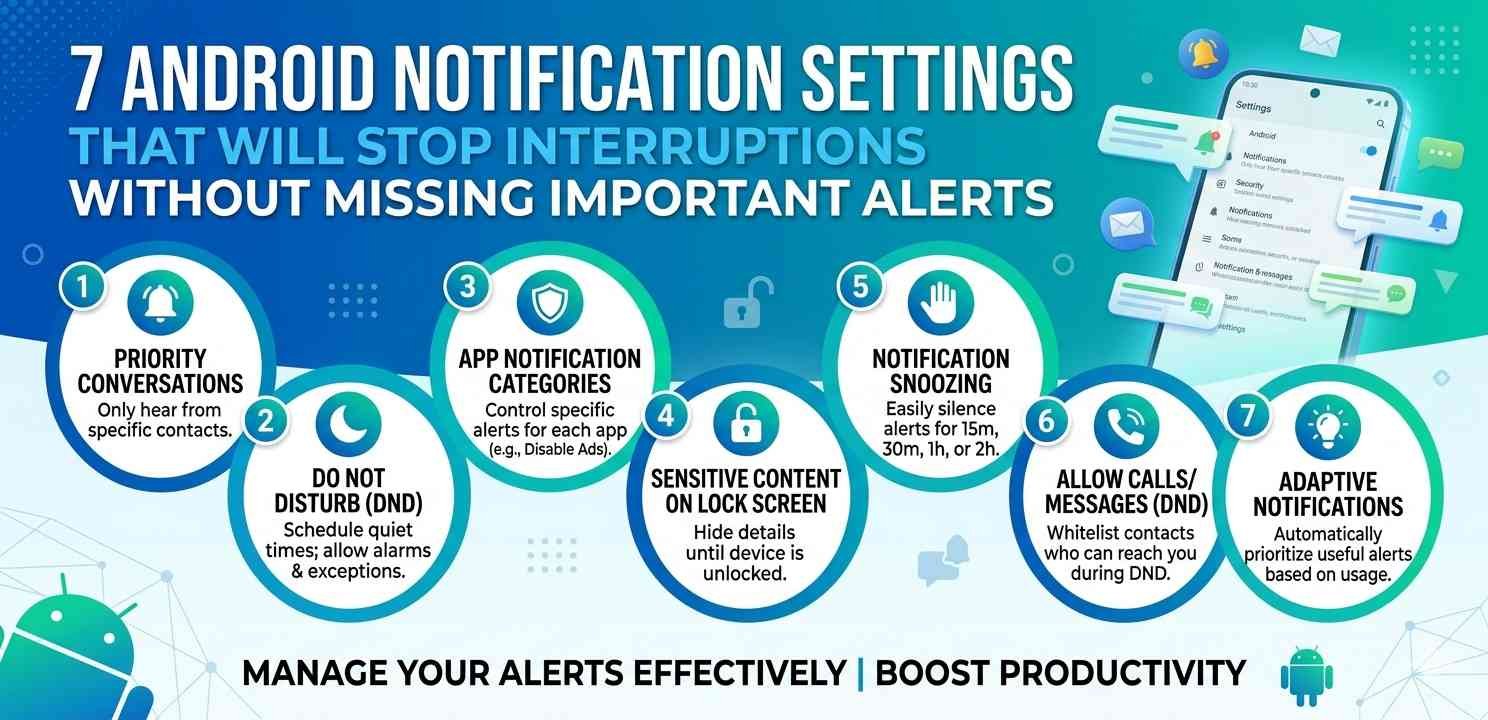
Most people deal with the same problem. Their Android phone buzzes, lights up, or chimes at least a dozen times a day — often for things that don’t matter at all. A social media like, a promotional email, a game asking you to come back. But here’s the frustrating part: when you finally silence everything, you end up missing an actual important call or message.
The right Android notification settings can fix both problems at once. You don’t have to choose between constant interruptions and total silence. Android gives you more control than most people realize — you just need to know where to look.
Let’s go through seven settings that actually make a difference.
1. Set Up “Do Not Disturb” the Smart Way
Do Not Disturb (DND) is one of the most powerful Android notification settings, but most people use it wrong. They turn it on and it blocks everything — including calls from family members or urgent work messages.
The smarter way is to customize what DND allows through.
How to Configure It
- Go to Settings > Sound & Vibration > Do Not Disturb.
- Tap People and set it to allow calls from Starred contacts or All contacts.
- Under Apps, allow specific apps (like your messaging app) to break through.
- Set up a Schedule so DND turns on automatically at night and off in the morning.
With this setup, DND blocks app notifications and promotional alerts, but an actual phone call from someone in your contacts still rings through. That’s the balance most people are looking for.
2. Use Notification Channels to Mute Individual App Categories
One thing that makes Android notification settings more flexible than most people expect is something called Notification Channels. This lets you mute specific types of notifications from one app without disabling all notifications from it.
For example, with Gmail, you might want to stop promotional email notifications but still get alerts for direct messages.
Steps to Access Notification Channels
- Go to Settings > Apps.
- Select the app (e.g., Gmail, YouTube, Instagram).
- Tap Notifications.
- You’ll see a list of categories — each one can be toggled independently.
This is one of the most underused Android notification settings, and it’s genuinely useful. Instead of going all-in or all-out with an app, you get to pick exactly which type of alerts you want.
3. Prioritize Alerts With Notification Importance Levels
Android lets you assign an importance level to each notification channel — from Urgent down to Silent. This directly affects whether a notification makes a sound, vibrates, or just shows up quietly in your status bar.
The Four Levels
- Urgent – Makes a sound and pops up on screen
- High – Makes a sound but doesn’t pop up
- Medium – No sound, shows in status bar
- Silent – Completely quiet, only visible if you pull down the notification shade
Adjusting these levels is one of the most effective Android notification settings for reducing interruptions. For apps like news or social media, setting them to Medium or Silent means you still get the notification — you’ll just see it when you choose to check.
4. Enable “Priority Mode” for Specific Apps
Some Android phones (especially Pixel and Samsung) include a Priority mode or Focus mode inside their Android notification settings. This is separate from Do Not Disturb.
On Samsung, this is called Focus Mode. On Pixel, it’s part of the Digital Wellbeing section.
What It Does
You choose a set of apps that are allowed to send notifications, and everything else is paused. Unlike DND, Focus Mode doesn’t mute calls — it just pauses non-essential app notifications.
This is a great setting if you work from home and need to stay focused for a few hours without going completely offline.
5. Customize Lock Screen Notification Behavior
A lot of Android users don’t realize how much their Android notification settings affect what appears on the lock screen. By default, many apps show the full content of a message or notification right on your lock screen — which is both a privacy issue and a distraction.
How to Change This
- Go to Settings > Notifications > Lock screen notifications (or On the lock screen).
- Choose one of three options:
- Show all notification content – Default, shows everything
- Hide sensitive notification content – Shows the app name but hides the message body
- Don’t show notifications at all – Lock screen stays clean
For most people, “Hide sensitive content” is the right balance. You’ll see that a message arrived without seeing who it’s from or what it says, which helps you decide whether to check it immediately or wait.
6. Turn Off Notification Badges (Dot Indicators)
Notification badges — those small colored dots that appear on app icons — are easy to overlook but surprisingly distracting. Every time you look at your home screen, your brain registers those dots and feels a small pull to check them.
Turning them off is a minor but effective adjustment to your Android notification settings that makes your home screen feel calmer.
How to Disable Badges
- Go to Settings > Notifications.
- Tap Advanced Settings or App icon badges (the exact name varies by manufacturer).
- Toggle off Allow notification dots or the badge display option.
You’ll still receive all your notifications in the notification shade — you just won’t see visual clutter on your app icons all day.
7. Schedule Notification Summaries (Android 12 and Above)
Android 12 introduced a feature called Notification Delivery, which lets you batch less important notifications and deliver them all at once at a scheduled time — like once in the morning and once in the evening.
This is one of the newer Android notification settings, and it’s particularly useful for apps you want to check but don’t need real-time updates from.
How to Enable It
- Go to Settings > Notifications.
- Tap Scheduled Summary (may be labeled differently depending on your phone brand).
- Choose apps you want included in the summary.
- Pick the delivery time(s).
Imagine getting all your Reddit, Twitter/X, and news notifications delivered at 8am and 6pm instead of throughout the day. You stay informed without the constant interruptions.
Which Setting Should You Start With?
If all seven feel like a lot to set up at once, start with just Do Not Disturb (Setting 1) and Notification Channels (Setting 2). Those two changes alone will cut most of the unnecessary noise.
Once you’re comfortable with those, work through the rest. Each one adds another layer of control — and together, they create Android notification settings that genuinely work for how you actually use your phone.
A Note on Third-Party Apps
Some third-party apps override Android’s native notification controls. If you notice that a particular app keeps interrupting you even after adjusting these settings, check inside the app itself. Many apps have their own in-app notification settings that take priority over Android’s system-level controls.
For deeper notification management, apps like Notification Manager by Jan Renz offer additional filtering and scheduling options.
Final Conclusion
Getting Android notification settings right is less about silencing your phone and more about training it to interrupt you only when it actually matters. The seven settings covered here — Do Not Disturb scheduling, Notification Channels, importance levels, Focus Mode, lock screen behavior, badge disabling, and notification summaries — each solve a different piece of the problem.
Used together, they give you a phone that respects your attention. You’ll stop missing important alerts not because everything rings, but because you’ve told Android exactly what counts as important and what doesn’t.