
Introduction
If your Android phone overheating is something you deal with regularly, you’re not alone. A lot of people notice their device getting uncomfortably warm during calls, gaming, or even just casual scrolling. It happens more than people think, and the frustrating part is — it’s not always obvious why.
Android phone overheating isn’t just a comfort issue. Over time, it can slowly damage your battery, reduce performance, and shorten the overall life of your device. I’ve personally seen a Samsung Galaxy A-series phone that started throttling performance badly just because the owner never addressed the heat problem early on.
This guide breaks down the real reasons behind Android phone overheating and gives you 7 practical fixes that work in 2025 — not just generic tips you’ve already seen everywhere.
Why Does Android Phone Overheating Happen?
Before jumping into solutions, it helps to understand what’s actually causing the problem.
Your phone generates heat as a natural byproduct of processing. The CPU, GPU, battery, and even the screen produce warmth during use. Under normal conditions, the phone manages this fine. But when multiple things pile up — background apps, poor ventilation, software bugs, or a degraded battery — the heat becomes too much.
Android phone overheating usually comes from one or more of these sources:
- Too many apps running in the background
- Streaming video or gaming for extended periods
- Faulty or bloated apps consuming unexpected resources
- Charging while using power-heavy features
- Direct sunlight exposure or hot environments
- An old or swollen battery
Knowing the source helps you pick the right fix.
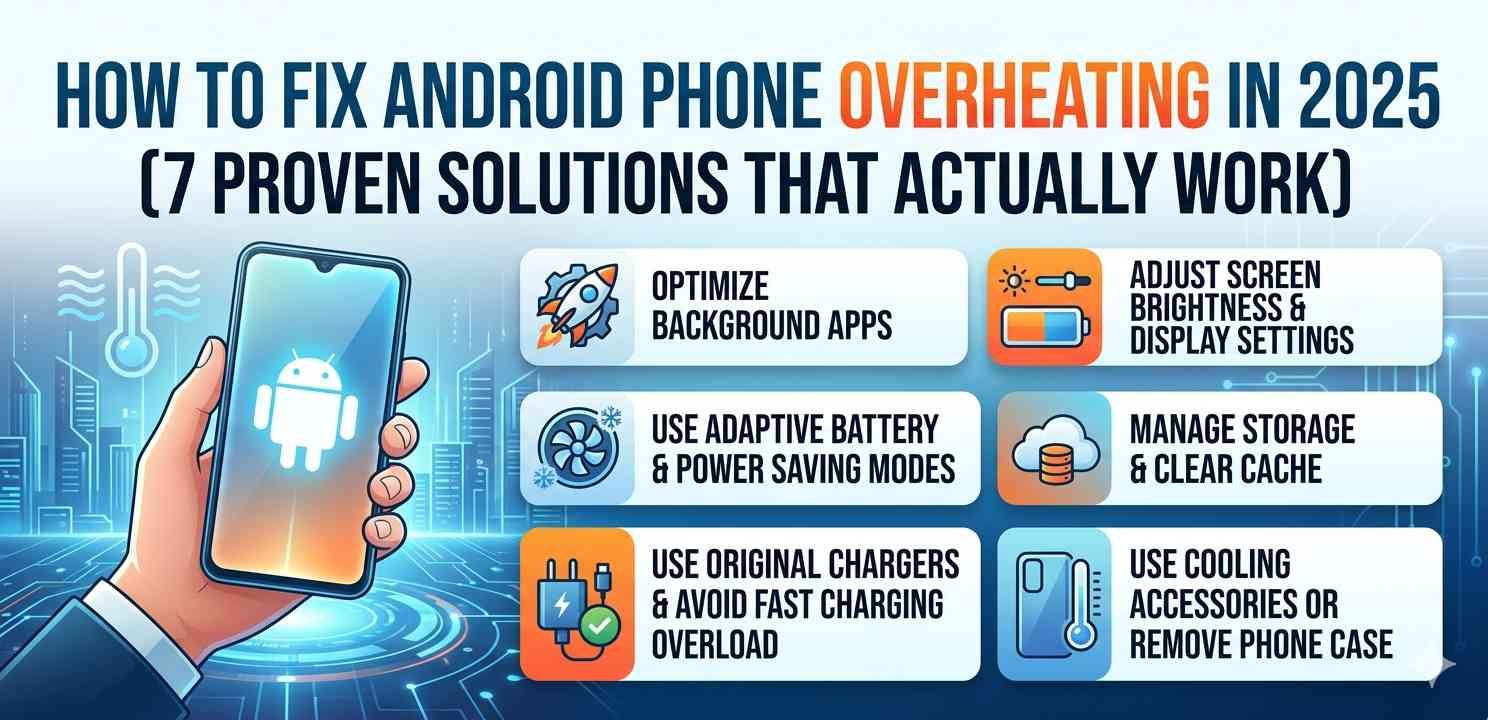
7 Proven Solutions to Fix Android Phone Overheating
1. Close Background Apps and Check CPU Usage
This is the first thing I check on any phone that’s running warm. Go to Settings > Battery > Battery Usage (or similar depending on your Android version). Look for apps consuming unusually high CPU or battery percentages.
On most Android phones, you can also access developer options to see real-time CPU data. If an app is misbehaving, it’ll be obvious.
Force stop anything suspicious. Apps that have crashed or are stuck in a loop often cause Android phone overheating without any visible sign on screen.
2. Turn Off Features You’re Not Using
Bluetooth, GPS, mobile hotspot, NFC — these all draw power even when you’re not actively using them. Each one adds a small load, and together they can contribute significantly to Android phone overheating.
Go to your quick settings panel and turn off what you don’t need. It’s a small habit that makes a real difference, especially in hot weather.
Adaptive brightness left at maximum also generates surprising heat from the display. Lowering brightness even 20–30% helps more than most people expect.
3. Update Your Apps and Android System
Outdated apps are a surprisingly common cause of Android phone overheating. Developers release updates that often fix memory leaks, battery drain issues, and performance bugs. If you’re running an old version of an app, it might be doing inefficient things in the background.
Go to the Google Play Store and update all your apps. Also check for system updates under Settings > Software Update or About Phone > System Updates.
System updates in 2025 frequently include thermal management improvements specifically designed to reduce overheating on affected models. Don’t ignore them.
4. Avoid Charging While Using Power-Intensive Apps
This one’s huge and often overlooked. When you charge your phone, the battery naturally warms up. If you’re also gaming or watching 4K video at the same time, you’re creating a double heat source inside the device.
The phone simply can’t dissipate both at once. Android phone overheating in this scenario is almost guaranteed.
Try to charge your phone when it’s idle. If you must use it while charging, stick to lighter tasks like messaging or reading. Also, use the original charger or a certified one — cheap third-party chargers can cause irregular charging patterns that generate extra heat.
5. Avoid Direct Sunlight and Hot Environments
I know this sounds obvious, but it’s worth saying clearly: leaving your phone on a car dashboard in summer is one of the fastest ways to permanently damage the battery. Ambient temperature plays a massive role in Android phone overheating.
Your phone’s thermal management system is designed to work within a reasonable room temperature range. When the environment itself is already hot, the phone has nowhere to dump its heat.
Keep your phone in the shade when outdoors. If the phone gets very hot to the touch and shows a temperature warning, turn it off and let it cool before using it again. Continuing to use it in that state is genuinely risky.
For more on thermal limits, Google’s Android documentation covers how Android handles thermal events internally.
6. Reset App Preferences or Do a Cache Wipe
Sometimes Android phone overheating is caused by corrupted cached data or broken app preferences that are silently consuming resources.
On most Android devices, you can clear the system cache by going to Settings > Storage > Cached Data and clearing it. On some phones, you can do this from recovery mode.
You can also go to Settings > Apps > Reset App Preferences to restore default settings for all apps. This doesn’t delete data but can fix apps that are stuck behaving oddly.
It’s a good idea to learn more about Android storage management to understand what safe clearing involves and what to avoid.
7. Check Your Battery Health
If your Android phone is more than two years old and overheating regularly, the battery itself might be the culprit. Lithium-ion batteries degrade over time, and a degraded battery produces more heat during both charging and discharge.
Some Android phones show battery health directly in settings. For others, you may need to dial *#*#4636#*#* (works on many Samsung and stock Android phones) to access battery information. Third-party apps like AccuBattery can also give you detailed battery wear stats.
If the battery is below 80% health, replacing it is often the most effective solution for persistent Android phone overheating. Many service centers offer affordable battery replacements, and it extends your phone’s usable life significantly.
What About Third-Party Cooling Apps?
Honestly? Most of them are not worth installing. Many so-called “phone cooler” apps actually add to the problem by running their own background processes. The legitimate ones basically just close background apps — something you can do yourself manually.
Don’t trust any app that claims to physically lower your phone’s temperature. The only way to do that is to reduce load on the processor and let the device dissipate heat naturally.
When Should You Be Concerned?
Normal warmth during gaming or charging is expected. But there are clear warning signs that something is seriously wrong:
- The phone shuts down automatically due to temperature
- The battery swells (you can feel or see the back bowing out)
- Overheating happens even on standby with nothing running
- The device feels hot near the bottom (charging port area) even without charging
In any of these cases, take the phone to a service center. A swollen battery is a safety hazard and shouldn’t be ignored.
Also check our guide on how to improve Android battery life in 2025 and common Android performance issues and how to fix them for related problems that often go hand in hand with overheating.
Final Conclusion
Android phone overheating in 2025 is a manageable problem in most cases — it just needs attention. Start with the basics: clear background apps, disable unused features, and keep your software updated. Then move toward the deeper fixes like battery health checks if the problem persists.
The key takeaway is that heat is usually a symptom of something else — a misbehaving app, an old battery, poor charging habits, or environmental factors. Fix the root cause, and the heat problem follows.
Your phone is built to last, but it needs a bit of care. These seven solutions aren’t just theory — they’re what actually works when Android phone overheating becomes a daily annoyance.