
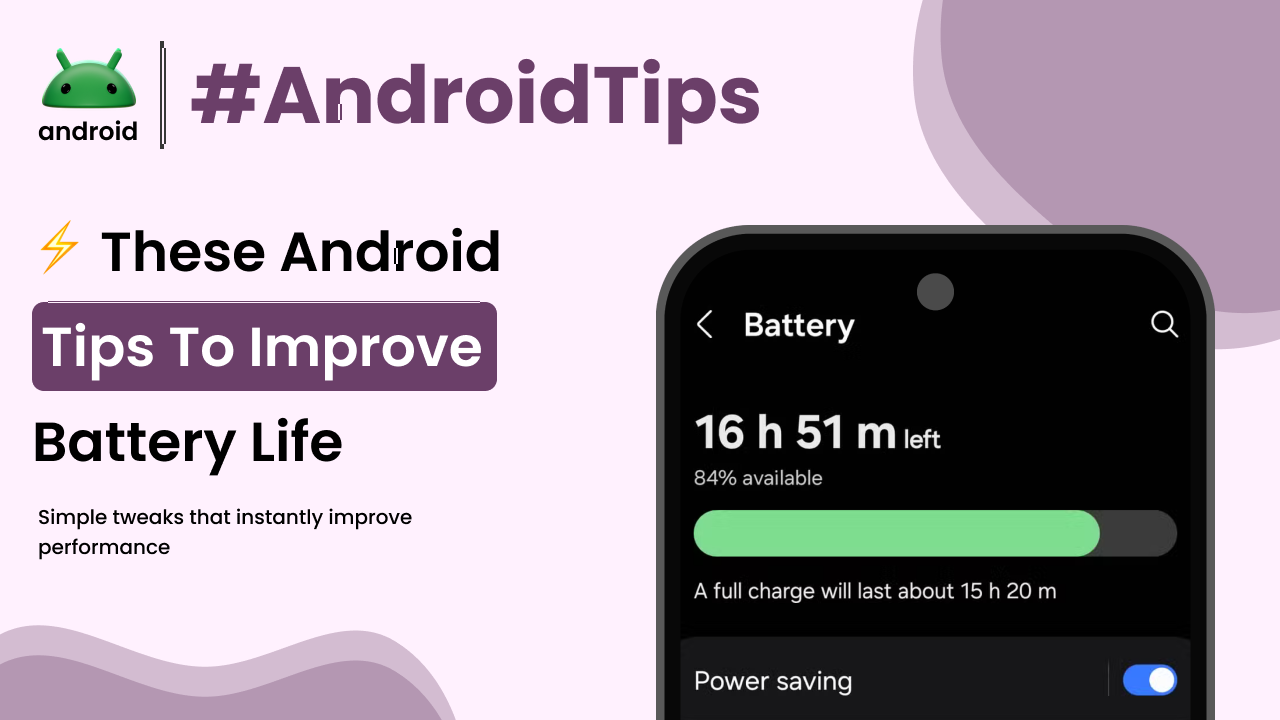
We all rely on our Android phones for pretty much everything these days, don’t we? From staying connected with friends and family to managing our work and even entertainment, our phones are essential. But what happens when that battery starts draining faster than you’d like? It’s a common frustration, and thankfully, there are plenty of straightforward ways to get more juice out of your device without resorting to complicated tweaks or app downloads.
Let’s dive into some practical, everyday Android tips that can help your battery last longer, naturally.
Understanding What Drains Your Battery
Before we get to the solutions, it’s helpful to have a general idea of what uses up your phone’s power. Think of your phone’s battery like a gas tank in a car. Some things are like cruising on the highway, using fuel steadily, while others are like constantly accelerating and braking, which burns through it much faster.
Screen brightness is a big one. The brighter your screen, the more power it needs. Then there are apps running in the background, even when you’re not actively using them. Things like location services, Wi-Fi, and Bluetooth searching for connections also contribute. Even a weak cellular signal can make your phone work harder to find a connection, sipping battery life.
Optimizing Your Display Settings
Your phone’s display is often the biggest power consumer, so making a few adjustments here can make a noticeable difference.
Adjust Screen Brightness
The most direct way to save battery is to lower your screen brightness. Most of us have our screens set brighter than they need to be for everyday use. You can usually find a brightness slider in your quick settings panel, accessible by swiping down from the top of your screen.
Many phones also have an “Adaptive brightness” or “Auto-brightness” setting. This feature uses your phone’s light sensor to automatically adjust the screen brightness based on your surroundings. While it’s convenient, sometimes it can still set the brightness higher than necessary. Experiment with turning it off and manually setting a comfortable, lower brightness level.
Use Dark Mode
If your Android phone has an OLED or AMOLED screen (common in many newer devices), using Dark Mode can actually save battery. These types of screens turn off individual pixels to display black, meaning those pixels aren’t using any power. If you spend a lot of time on apps with dark interfaces or your system-wide Dark Mode, you might see a modest improvement in battery life.
Reduce Screen Timeout
The screen timeout is the amount of time your screen stays on after you stop interacting with it. A shorter timeout means your screen turns off sooner, saving power. Instead of the default 1 or 2 minutes, try setting it to 30 seconds or even 15 seconds. You’ll likely find you don’t miss the extra time much.
Managing Apps and Background Activity
Apps are fantastic, but they can also be sneaky battery drains if not managed properly.
Identify Battery-Hungry Apps
Your phone’s settings menu usually has a “Battery” section where you can see which apps are consuming the most power. Take a look here regularly. If you see an app you rarely use is at the top of the list, it’s worth investigating.
This can help you understand how your phone is actually used and where the power is going. For a deeper dive into how apps and systems work on Android, understanding Android development can offer some fascinating insights.
Restrict Background App Usage
Some apps are designed to run processes in the background to provide notifications or sync data. While useful, this can drain your battery. In your phone’s battery settings, you can often find options to restrict background usage for specific apps.
Be cautious with this, as restricting an app too much might prevent it from sending you important notifications. However, for apps you don’t need constant updates from, like a game or a less-used social media app, this can be a significant battery saver.
Close Unused Apps
It might sound obvious, but many people leave apps open in the background even after they’ve finished using them. Regularly clearing out your recent apps list can help reduce background activity. Swipe up from the bottom of your screen (or use the recent apps button on older devices) and then swipe away any apps you’re not currently using.
Leveraging Connectivity Features Wisely
Connectivity features like Wi-Fi, Bluetooth, and GPS are incredibly useful, but they do consume power when active.
Turn Off Wi-Fi and Bluetooth When Not Needed
When you’re out and about and not connected to a Wi-Fi network, turn off Wi-Fi scanning. Similarly, if you’re not using Bluetooth headphones or other devices, turn off Bluetooth. Your phone constantly searches for available networks and devices, which uses battery.
Accessing these toggles is usually quick via the notification shade. Keeping them off when not in use is a simple habit that adds up.
Manage Location Services
Location services are essential for maps and other apps, but they can be a major battery drain. Go into your phone’s location settings and review which apps have access to your location. You can often set permissions to “Allow only while using the app,” which is much more battery-friendly than “Allow all the time.”
Also, check the “Location services” or “Advanced” settings within the location menu. You might find options for Wi-Fi scanning and Bluetooth scanning for location, which can be turned off if you don’t need that level of precision.
Battery Maintenance and Charging Habits
How you charge and maintain your battery also plays a role in its overall health and how long it lasts day-to-day.
Avoid Extreme Temperatures
Just like us, our phones don’t like extreme heat or cold. Leaving your phone in a hot car or direct sunlight can degrade the battery faster over time. Similarly, very cold temperatures can temporarily reduce battery performance. Try to keep your phone in a moderate temperature environment.
Don’t Always Charge to 100%
This is a bit counter-intuitive, but constantly charging your phone to 100% and letting it drop to 0% can put stress on the battery. Lithium-ion batteries, like the ones in most smartphones, often prefer to be kept between 20% and 80% charge.
Many modern Android phones have “adaptive charging” or “battery care” features that learn your charging habits and optimize charging overnight to reduce stress on the battery. Explore your phone’s battery settings to see if it offers such features.
System Updates and Software Optimization
Keeping your phone’s software up-to-date is not just about new features; it’s also crucial for performance and battery efficiency.
Install System Updates
When Google or your phone manufacturer releases a software update, it often includes improvements to battery management and bug fixes that might be impacting power consumption. Make sure to install these updates when they become available. They are often designed to make your phone run smoother and more efficiently.
Final Conclusion
Improving your Android phone’s battery life doesn’t require complex magic tricks. It’s mostly about understanding how your phone uses power and making small, conscious adjustments to your settings and habits. By managing your display brightness and timeout, being mindful of background app activity, using connectivity features judiciously, and adopting good charging practices, you can significantly extend the time between charges. Keeping your system updated also contributes to a healthier, more efficient device. These natural tips work together to help you get the most out of your Android device every day.