
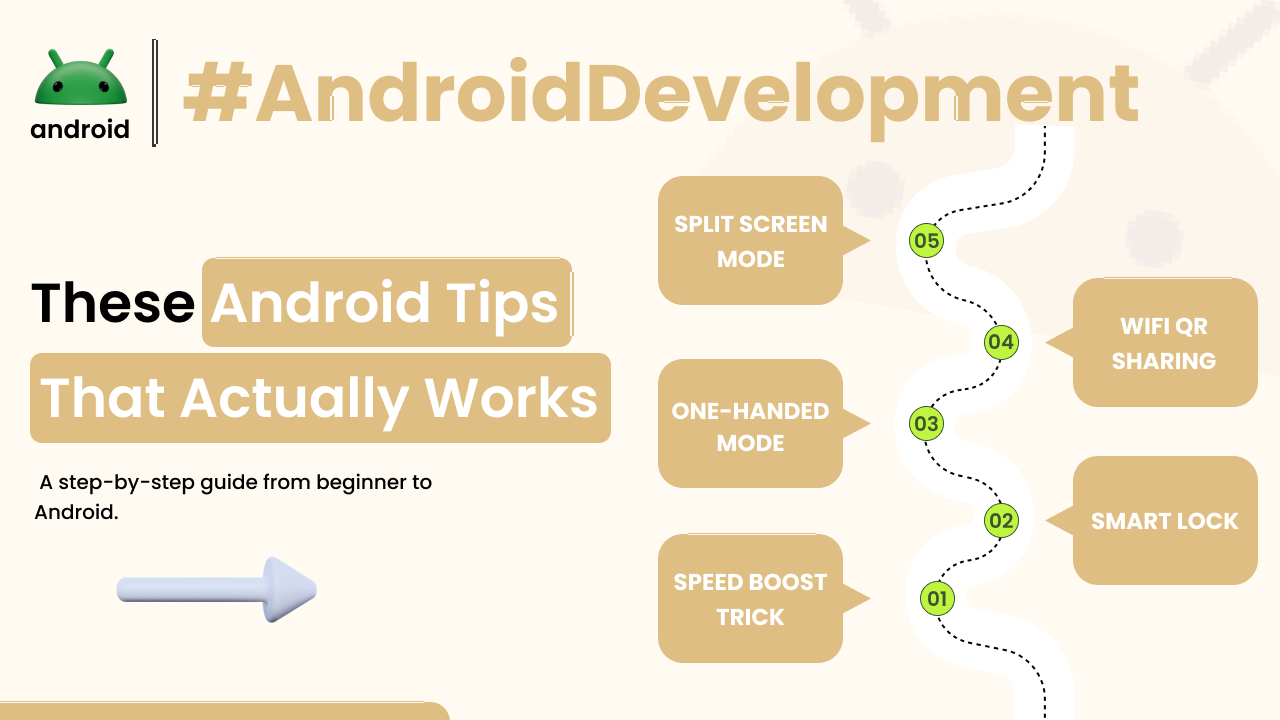
Ever feel like your Android phone could be doing more for you? Or maybe it’s just not quite as snappy as it used to be? You’re not alone. We all want our phones to be reliable companions, not sources of frustration. Over the years, I’ve spent countless hours digging through settings, trying out different apps, and just generally experimenting to figure out what truly makes an Android device hum. And let me tell you, it’s not always about buying the newest model or downloading a magic “booster” app.
The real secret lies in understanding a few core principles and applying some practical, straightforward adjustments. These aren’t complicated tech hacks; they’re simple habits and settings tweaks that can genuinely improve your daily Android experience. From making your battery last longer to keeping your personal data safe, these tips come from real-world use and are designed to help you get the most out of the device in your hand, right now.
Beyond the Basics: Unlocking Your Android’s True Potential
Think of your Android phone like a well-oiled machine. It needs a little care and attention to perform its best. Often, small changes can lead to surprisingly big improvements in how smoothly everything runs.
Taming Your Apps: A Performance Power-Up
We install so many apps these days, don’t we? Many of them, even when you’re not actively using them, are busy working away in the background. They might be checking for updates, refreshing content, or sending notifications. While some background activity is necessary, too much can slow your phone down and drain your battery faster than you’d like. It’s like having too many programs open on a computer – eventually, things get sluggish.
To see what’s quietly running, head into your phone’s Settings, then look for “Apps” or “Apps & notifications.” You can often tap “See all apps” to get a full list. If you spot an app that you rarely use but seems to be consuming a lot of battery or data, you have a few options. You can often “Force Stop” it if it’s misbehaving, or even “Disable” it if you never use it but can’t uninstall it (like some pre-installed bloatware). Just be careful not to mess with critical system apps, of course!
Another powerful area to explore is App Permissions. Did that flashlight app really need access to your contacts or location? Probably not. By going into each app’s info page in Settings, you can review and revoke permissions that feel unnecessary. It’s a simple step, but it gives you back control over your data and can even stop some apps from running quite so much in the background when they shouldn’t be. For those curious about what makes Android tick differently from other operating systems, you might find this guide on how Android stands apart insightful, especially when considering how its open nature allows for this level of app control.
Battery Life That Lasts: Smart Habits
Modern Android phones come with some clever battery-saving features, but they still benefit from a little human help. One of the biggest advancements is “Adaptive Battery.” This feature, found in your Battery settings, learns how you use your apps and limits battery usage for those you don’t interact with often. Make sure this is turned on; it’s usually enabled by default but it’s good to check.
Dark Mode isn’t just easy on the eyes; it can actually save significant battery life on phones with OLED or AMOLED screens. These screens light up individual pixels, so displaying black pixels means those pixels are essentially off, consuming no power. It’s a neat trick! Head to your Display settings to turn it on, and schedule it to activate automatically if you like.
Another battery culprit can be location services. Many apps constantly ask for your location, even when they don’t truly need it. Review your app permissions for location access and set apps to “Allow only while using the app” or “Ask every time” rather than “Always allow.” Similarly, while Wi-Fi is generally more power-efficient than mobile data, constantly scanning for Wi-Fi networks when you’re out and about can be a drain. Consider turning off Wi-Fi scanning if you’re not actively looking for a network.
Safeguarding Your Digital Life: Essential Security Measures
Your phone holds so much personal information – photos, messages, banking apps. Protecting it is paramount. These Android tips aren’t just about convenience; they’re about keeping your digital life secure.
Protecting Your Data: Screen Locks and Biometrics
It might sound obvious, but having a strong screen lock is your first line of defense. A simple swipe to unlock is no protection at all. Opt for a PIN, pattern, or a strong alphanumeric password. A six-digit PIN is better than four, and a complex pattern that isn’t immediately obvious is also a good choice. Take the time to set one up properly if you haven’t already.
Most modern Android phones also offer biometric security like fingerprint scanners or face unlock. These are fantastic for convenience, making it quick and easy for *you* to access your device. Just remember they are additions to your primary screen lock, not replacements. Always ensure your fingerprint or face data is securely enrolled and that you still have a robust PIN or password as a fallback.
Keeping Up-to-Date: The Power of Software Updates
I know, sometimes those update notifications can feel like a nuisance, but they are incredibly important. Software updates for your Android operating system aren’t just about getting new features or a slightly different look. Crucially, they contain security patches that protect your phone from newly discovered vulnerabilities. Running an outdated operating system is like leaving your front door unlocked.
Make it a habit to check for and install updates promptly. You can usually find the option under Settings > System > System update (or Software update, depending on your phone model). It’s best to perform these updates when your phone is charged and connected to Wi-Fi to avoid data charges and interruptions. Your phone will feel more stable and, most importantly, be much safer.
The “Find My Device” Lifeline: Set It Up Now
Losing your phone is a terrible feeling. But with Google’s “Find My Device” feature, you have a solid chance of getting it back or at least protecting your data. This isn’t something to set up *after* your phone goes missing; it needs to be active beforehand. Most Android phones have it enabled by default if you’re signed in with a Google account, but it’s worth a quick check.
Go to Settings, search for “Find My Device,” and ensure it’s turned on. You can then access it from any web browser by going to google.com/android/find and signing in with the same Google account. From there, you can see your phone’s last known location on a map, make it ring (even if it’s on silent!), lock it, or, in a worst-case scenario, erase all its data to prevent unauthorized access. It’s truly a digital safety net.
Making Android Work For You: Customization and Convenience
One of Android’s greatest strengths is its flexibility. You can really make it your own. These Android tips focus on tailoring your device to fit your personal workflow and preferences.
Notifications, Not Nuisances: Taking Control
We’ve all been there: a constant barrage of pings and vibrations. Notifications can be incredibly useful, but they can also be a huge distraction. Android offers granular control over them, but you have to dig a little. Instead of just blocking all notifications from an app, you can use “Notification Channels” (available on newer Android versions).
Long-press on a notification from an app, and you’ll often see options to “Turn off notifications” or “Settings.” Tapping “Settings” for that app will take you to a page where you can categorize and prioritize different types of alerts. For example, a messaging app might have channels for “Group chats,” “Direct messages,” and “Promotions.” You can silence the promotions channel while keeping important direct messages audible. This really helps cut down on digital noise.
Similarly, the Quick Settings panel – that swipe-down menu from the top of your screen – is incredibly customizable. Long-press on any of the icons (like Wi-Fi, Bluetooth, Flashlight) to jump directly to their settings, or tap the little pencil icon to rearrange, add, or remove shortcuts. Put your most frequently used toggles within easy reach, so you don’t have to go deep into settings just to turn on the hotspot.
Widgets That Actually Help: Practical Uses
Widgets are often overlooked, but they’re a fantastic way to get information at a glance without even opening an app. It’s not just about a fancy weather display! Think about what you check most often throughout the day. A calendar widget can show your next appointments right on your home screen. A notes widget can keep your shopping list visible. Music player widgets allow you to control playback without unlocking your phone or opening the app.
To add a widget, usually, you just long-press on an empty space on your home screen and select “Widgets.” Then, scroll through the list to see what your installed apps offer. Experiment with different sizes and positions to find what works best for your daily routine. It’s all about creating an information hub that serves *you*.
Navigating Your Way: Gestures and Accessibility
Modern Android phones often give you a choice between traditional three-button navigation (Back, Home, Recents) and gesture navigation. Gesture navigation, where you swipe from the sides or bottom of the screen, can feel really fluid and free up screen real estate. If you haven’t tried it, give it a week or two; it might just become your preferred way to get around. You’ll find this option in Settings, usually under “System” or “Display,” then “Navigation mode.”
For those with larger phones, “One-handed mode” is a lifesaver. This feature temporarily shrinks the active screen area down to one side, making it easier to reach the top of the display with your thumb. It’s usually activated by a quick swipe down on the navigation bar or a gesture, and can be found in Accessibility settings. Speaking of Accessibility, don’t ignore these settings! They’re not just for users with specific needs; things like adjusting text size, display zoom, or even making the phone vibrate more intensely for notifications can improve everyone’s experience.
Finally, a word on “Digital Wellbeing.” While not strictly a “tip” in the same way as the others, understanding and using this feature (found in your Settings) can be profoundly helpful. It gives you insights into how much time you spend on your phone and in specific apps. You can set app timers, use Focus Mode to pause distracting apps, or even turn on Wind Down to grayscale your screen before bed. It helps you build healthier phone habits, which, for many, is the most practical tip of all. To delve deeper into how Android works and discover more practical insights, you can always visit androidskillspro.in for a wealth of information.
Keeping Things Running Smoothly: Storage and Backup Wisdom
A full phone is a slow phone, and a phone without a backup is a disaster waiting to happen. These final Android tips are about keeping your device optimized and your memories safe.
Decluttering Your Digital Space: Storage Management
Is your phone constantly telling you it’s running out of space? Don’t fret. A quick win is often clearing app cache. Many apps store temporary data (cache) to load faster, but this can build up over time. Go to Settings > Apps, tap on an app, and then “Storage & cache.” You’ll often see an option to “Clear cache.” This is usually safe to do and won’t delete important app data.
Next, tackle your downloads folder and old media. We often download PDFs, images, or videos that we only need once, then forget about them. The Files by Google app (or your phone’s built-in file manager) can help you find and delete these quickly. Pay special attention to large video files or duplicate photos. Sometimes, simply knowing where your largest files are stored makes a huge difference in freeing up space. Remember, a lighter phone is often a faster phone.
Never Lose a Photo: Smart Backup Strategies
This is perhaps the most important tip of all. Imagine losing all your photos, videos, and important documents. It’s heartbreaking. Luckily, Android and Google make backing up incredibly easy. For photos and videos, Google Photos is a lifesaver. Install the app, sign in with your Google account, and turn on “Backup & sync.” It will automatically upload your precious memories to the cloud, accessible from any device.
For other important files – documents, spreadsheets, etc. – Google Drive is your friend. You can manually upload files or set up automatic syncing for certain folders. And for your phone’s settings, app data, and call history, Android has a built-in backup service that links to your Google Account. Make sure it’s active by going to Settings > System > Backup (or similar, depending on your phone). This ensures that if you ever get a new phone or need to factory reset, restoring your personalized setup is a breeze. It’s a foundational step for any Android user to take. You can find detailed instructions directly from Google on how to back up or restore data on your Android device.
Final Conclusion
Navigating the world of Android doesn’t have to be overwhelming. By implementing these practical tips, you’re not just performing maintenance; you’re genuinely enhancing your daily interaction with your device. From judiciously managing your apps to extending battery life, fortifying your security, and customizing your experience to fit you perfectly, each adjustment contributes to a more efficient, enjoyable, and reliable phone. The beauty of Android lies in its adaptability, and with a little effort, you can truly make it your own intelligent companion, ready to handle whatever your day throws at it. Don’t wait for problems to arise; take charge of your Android experience today, and you’ll appreciate the difference it makes.