
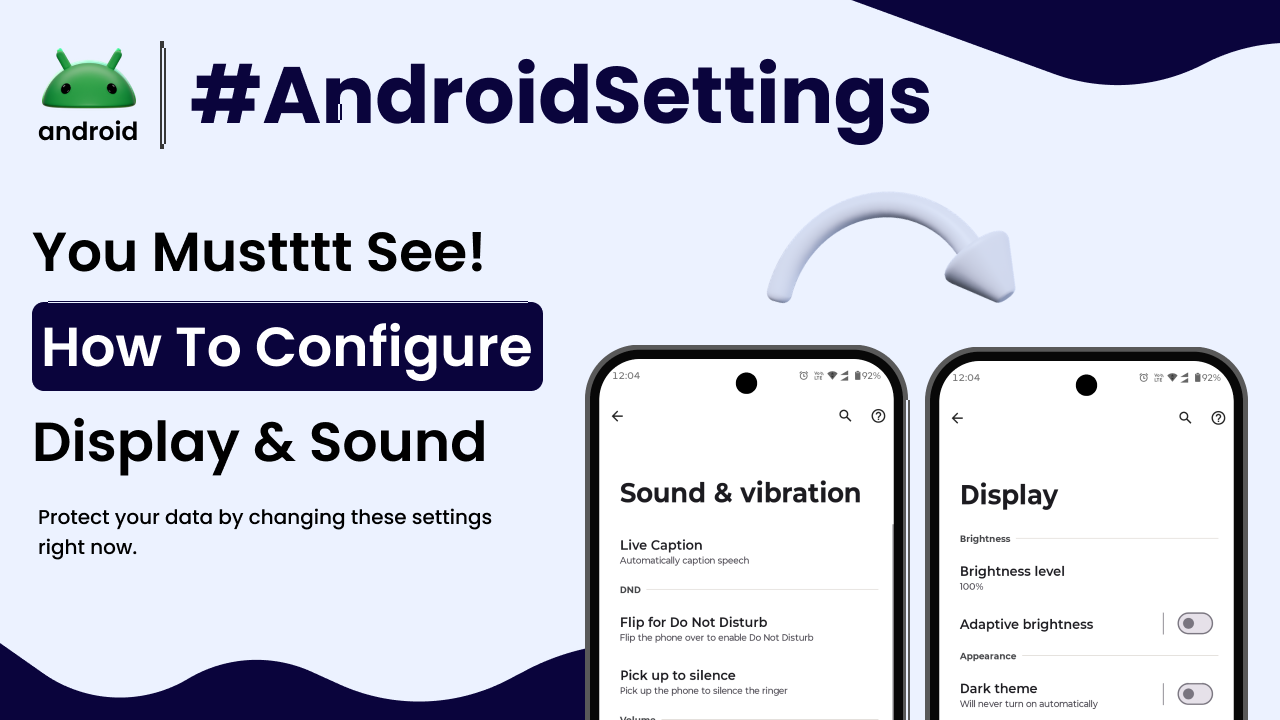
Navigating through your Android phone’s settings can sometimes feel like a maze, especially when it comes to tailoring the display and sound to your liking. These aren’t just simple on/off switches; they’re powerful tools that can significantly enhance your daily experience, from making text easier to read to ensuring you never miss an important notification.
Think about it: your phone is probably in your hand or pocket for a good chunk of the day. Making sure the screen looks just right and the sounds are exactly how you want them can make a big difference in how you interact with your device.
Understanding Your Display Settings
The display settings are where you control how your phone looks. This includes everything from how bright the screen is to the colors and even how long the screen stays on before turning off.
Brightness and Adaptive Brightness
The most basic display setting is brightness. You can usually find a slider in the quick settings menu or within the main Display settings. Sliding it up makes the screen brighter, which is great for sunny days, but can drain your battery faster.
Many phones also have “Adaptive Brightness.” This feature uses your phone’s light sensor to automatically adjust the screen brightness based on your surroundings. It’s a handy way to save battery and reduce eye strain without you having to constantly fiddle with the slider.
Screen Timeout
This setting determines how long your screen stays on after you stop interacting with it. A shorter timeout saves battery, but you might find yourself turning the screen back on more often. A longer timeout is convenient if you frequently refer to your phone, but it does use more power.
Finding a balance here is key. For example, if you’re reading a recipe in the kitchen, you might want it set longer. If you’re just quickly checking notifications, a shorter time is fine.
Font Size and Display Size
If you find the text on your phone too small to read comfortably, or perhaps too large, you can adjust it. Under the Display settings, you’ll usually find options for “Font size” and “Display size” (sometimes called “Screen zoom”).
Font size specifically changes the size of text. Display size, on the other hand, scales everything on the screen – icons, text, and images – making the whole interface appear larger or smaller. This is particularly useful for those with visual impairments or simply for personal preference.
Night Light and Color Temperature
Ever noticed how staring at a bright screen late at night can make it harder to fall asleep? Many Android phones include a “Night Light” or “Blue Light Filter” feature. This reduces the amount of blue light emitted by the screen, giving it a warmer, more amber hue.
You can often schedule this feature to turn on automatically at sunset and off at sunrise, or set custom times. Some phones also allow you to adjust the color temperature manually, letting you fine-tune the warmth of the display to your comfort level.
Dark Theme
The “Dark theme” (or “Dark mode”) is a popular feature that inverts the typical light background to a dark one, with light text. This isn’t just for aesthetics; it can significantly reduce eye strain in low-light conditions and can also save battery life on phones with OLED or AMOLED screens, as black pixels are essentially turned off.
You can usually toggle Dark theme on and off manually, or schedule it to activate during specific hours, much like Night Light.
Exploring Your Sound Settings
Sound settings are equally important for personalizing your Android experience. This is where you control ringtones, notification sounds, media volume, and even haptic feedback.
Volume Controls
Most Android phones have physical volume buttons on the side. Pressing these typically brings up a volume slider. You’ll often see different sliders for Media volume (for videos, music, games), Call volume (for phone calls), Ring & notification volume, and sometimes Alarm volume.
It’s really useful to know you can adjust these independently. You might want your music loud but your notifications silent, and this is how you achieve that.
Ringtones and Notification Sounds
Your phone’s ringtone and notification sounds are its voice. Within Sound settings, you can choose from a variety of pre-installed sounds or even set your own custom ringtones and notification alerts, often using an MP3 file from your storage.
This is a great way to personalize your device. You can assign different ringtones to different contacts, so you know who’s calling without even looking at your screen.
Vibration and Haptics
Beyond just sound, many phones offer vibration feedback. You can usually enable or disable vibration for calls, notifications, and even touch interactions (haptic feedback). Haptic feedback provides a subtle rumble or buzz when you tap buttons or type on the keyboard.
Some users find haptic feedback adds a satisfying tactile element to using their phone, making interactions feel more responsive. Others prefer to turn it off to save battery or for a quieter experience. You can typically adjust the intensity of the vibration and haptics as well.
Do Not Disturb (DND)
The “Do Not Disturb” mode is a lifesaver for focus and quiet time. When enabled, it silences all calls, messages, and other notifications, allowing only exceptions you specifically permit. You can set DND to automatically turn on during certain hours (like overnight) or activate it manually when you need uninterrupted quiet.
You can configure DND to allow calls from starred contacts, repeat callers, or specific apps, so you don’t miss truly urgent communications. This feature is incredibly useful for work, sleep, or any situation where you need to minimize distractions.
Sound Enhancements
Depending on your phone’s manufacturer and model, you might find additional “Sound enhancements” or “Audio effects.” These can include features like Dolby Atmos for a more immersive audio experience when watching videos or listening to music, or equalizer settings to adjust the audio frequencies to your preference.
Exploring these can really elevate your media consumption. It’s like giving your phone’s speakers a little boost or fine-tuning them for different types of sound.
Putting It All Together for a Better Experience
The real magic happens when you combine and fine-tune these display and sound settings. For instance, you might set your phone to use a dark theme and a warmer color temperature in the evening, coupled with Do Not Disturb mode automatically activating, to prepare for sleep.
In the morning, you might have a specific ringtone for important contacts and a less intrusive notification sound for general alerts. During the day, adaptive brightness keeps things comfortable, and you can quickly adjust media volume for a video without affecting your call volume.
Getting comfortable with these settings is a fundamental part of mastering your Android device. It allows you to move beyond the default experience and truly make your phone work for you. Understanding these options empowers you to optimize your phone for battery life, readability, and auditory comfort.
For a deeper dive into how your Android phone works, understanding basic terms is a great starting point. Check out Important Android Terms Every User Should Know to get a more comprehensive grasp of your device.
Remember, your phone is a personal tool, and its settings are there to be customized. Don’t hesitate to explore the Display and Sound menus on your own device. You might be surprised at how much you can improve your daily interaction with just a few adjustments. For more tips and information on Android, you can always visit androidskillspro.in.
To get a bit more technical insight into how these settings are managed at a lower level, you can refer to the official Android developer documentation on display and audio features. While it’s aimed at developers, it can offer a good overview of the underlying technology: Android Audio Capture.
Final Conclusion
In essence, the display and sound settings on your Android phone are your primary tools for personalization and comfort. From adjusting screen brightness and text size to managing ringtones, notification alerts, and the vital Do Not Disturb mode, these features allow you to craft an interaction experience that perfectly suits your needs and environment. Taking the time to explore and configure these settings can significantly enhance usability, reduce eye strain, manage distractions, and ultimately make your smartphone a more enjoyable and efficient companion.