
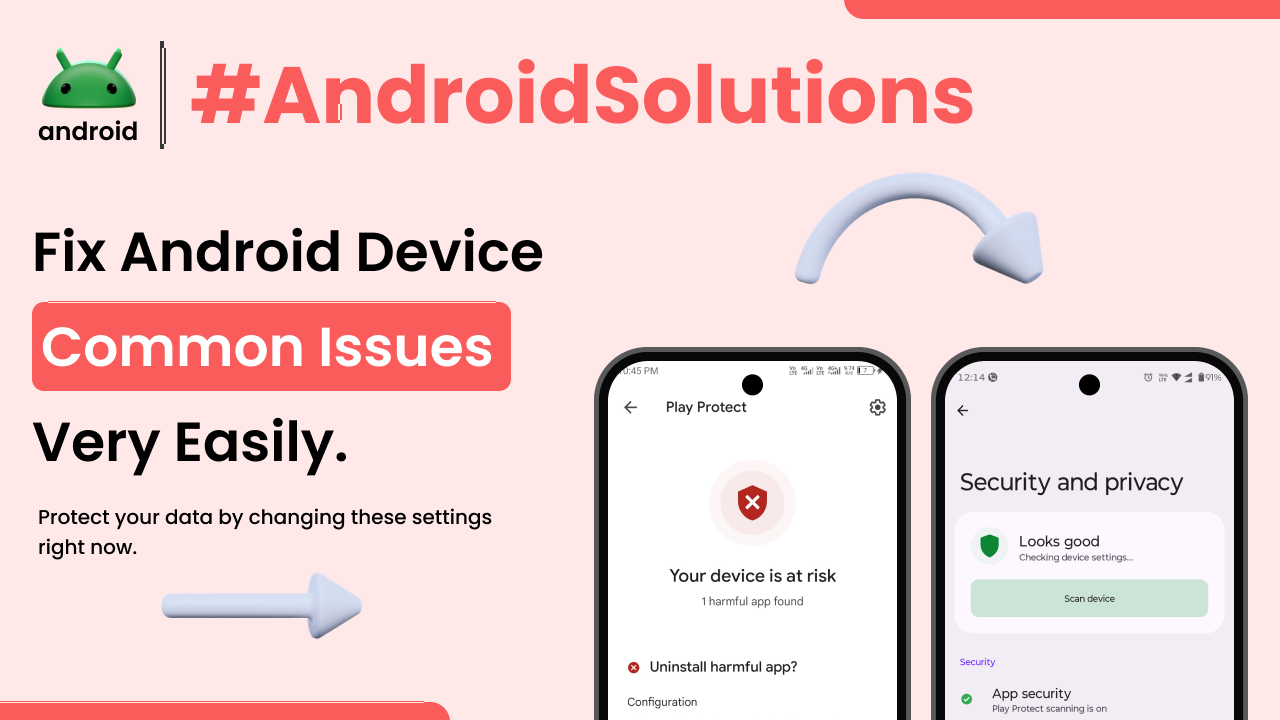
It’s happened to all of us. You’re trying to open your favorite social media app, or perhaps a navigation tool when you’re already running late, and suddenly… nothing. Or maybe it freezes, crashes, or just generally misbehaves. It’s frustrating, isn’t it? As someone who’s spent a fair bit of time wrestling with Android devices, I can tell you that app problems are a pretty common part of smartphone life. But here’s the good news: most of these hiccups aren’t serious and can be sorted out with a few simple, practical steps. You don’t need to be a tech wizard; just a little patience and the right knowledge can get your apps running smoothly again.
Understanding Why Apps Misbehave
Before we dive into the fixes, it helps to get a quick grasp of *why* an app might decide to act up. Think of your Android phone as a busy little ecosystem. Sometimes, things get a bit crowded, or a piece of information gets misplaced. An app might misbehave due to a temporary software glitch, a buildup of old data, or simply because it hasn’t been updated to work well with your phone’s current system.
Other times, the problem might not even be the app itself. It could be your internet connection, low storage on your phone, or even a conflict with another app you recently installed. Knowing these potential culprits helps us narrow down our troubleshooting approach. Every Android device, regardless of its specific version or how it stands apart from other mobile operating systems, can experience these common issues. Sometimes, just a small tweak makes all the difference, bringing clarity to why your apps might not be performing as expected.
The First Steps: Universal Troubleshooting for Any App
When an app starts acting funny, there are a few go-to methods that often solve the problem right away. These are the basic, yet effective, initial checks that everyone should try.
A Simple Restart: The Oldest Trick in the Book
It sounds almost too simple, doesn’t it? But seriously, restarting things is a magic wand for many tech troubles. If an app isn’t responding, first try closing it completely. On most Androids, you can swipe up from the bottom (or tap the square navigation button) to see your open apps, then swipe the problematic app away.
If that doesn’t work, give your whole phone a restart. Just hold down the power button, tap “Restart,” and let your phone do its thing. This clears out temporary software glitches and gives everything a fresh start. You’d be surprised how often this alone fixes stubborn issues.
Check Your Internet Connection
Many apps rely heavily on the internet, and a flaky connection can make an app seem broken when it’s perfectly fine. If an app isn’t loading content or sending messages, quickly check your Wi-Fi or mobile data. Try opening a web page in your browser or another online app.
If your internet seems slow or unstable, try turning Wi-Fi off and then back on, or toggling airplane mode on and then off for mobile data. Sometimes, a quick reset of your network connection is all it takes to get things flowing again.
Update Your App and Android System
Developers constantly release updates to fix bugs, improve performance, and add new features. If your app is outdated, it might not be compatible with your phone’s current Android version, leading to issues.
To update an app, open the Google Play Store, tap your profile icon (usually top right), and go to “Manage apps & device.” Here, you can see available updates and update them individually or all at once. Similarly, it’s wise to keep your phone’s Android system updated. Go to Settings > System > System update to check for and install any pending updates. This ensures your phone’s core software is working optimally with all your apps.
When Apps Slow Down or Freeze
Beyond crashing, another common headache is when an app just chugs along, taking forever to load, or becoming completely unresponsive. These issues often point to resource management on your phone.
Clearing the App’s Cache
Every time you use an app, it stores small bits of data, called “cache,” to help it load faster next time. Think of it like a shortcut. But sometimes, this cache can get corrupted or grow too large, actually *slowing* the app down. Clearing it out is often a safe and effective fix.
Here’s how:
1. Go to your phone’s **Settings**.
2. Tap on **Apps** (or “Apps & notifications,” “App management,” depending on your phone model).
3. Find and tap on the specific app that’s giving you trouble.
4. Tap **Storage** (or “Storage & cache”).
5. Tap **Clear cache**. This won’t delete any important data or login information.
Clearing App Data (Use with Caution!)
If clearing the cache doesn’t help, the next step is to clear the app’s *data*. This is a more drastic measure because it essentially resets the app to its factory state, as if you just installed it. This means you’ll lose any custom settings, saved game progress, and you’ll have to log in again.
Only do this if clearing the cache didn’t work and you’re prepared to set the app up again.
1. Follow steps 1-4 above (Settings > Apps > [App Name] > Storage).
2. Tap **Clear data** (sometimes labeled “Clear storage”).
3. Confirm your decision.
Freeing Up Device Storage
Modern apps can be quite large, and if your phone is critically low on storage, apps can struggle to run smoothly or even open at all. Imagine trying to work in a cramped room; apps need space to breathe.
Check your storage in Settings > Storage. If it’s nearly full, consider deleting old photos and videos you’ve backed up elsewhere, uninstalling apps you no longer use, or clearing out large downloaded files. Many Android phones also have a “Files” app or a built-in “Storage manager” that can help you identify and delete unnecessary files. Keeping your device storage tidy can significantly improve overall app performance and is a key part of maintaining good Android skills. For more general insights into managing your Android device effectively, you might find useful resources on our homepage.
Apps Crashing or Not Opening
When an app simply refuses to open or crashes repeatedly, it suggests a deeper issue with the app’s installation or its interaction with your phone’s system.
Reinstalling the Problematic App
A corrupted app installation can cause consistent crashes. The simplest way to fix this is to uninstall the app completely and then reinstall it. This ensures you get a fresh, clean copy.
1. Go to **Settings > Apps > [App Name]**.
2. Tap **Uninstall**.
3. Once uninstalled, open the **Google Play Store**.
4. Search for the app and reinstall it. You’ll need to sign in and set it up again.
Checking App Permissions
Android apps require certain permissions to function correctly, like access to your camera for a photo app or location for a maps app. If a necessary permission is denied, the app might crash or simply not work.
1. Go to **Settings > Apps > [App Name]**.
2. Tap **Permissions**.
3. Review the list and ensure all necessary permissions are granted. For example, if a banking app crashes when trying to access your contacts for sharing, make sure it has contact permission. Be mindful of privacy, but also understand that some apps genuinely need specific access to function.
Testing in Safe Mode (Advanced)
Sometimes, a recently installed third-party app can cause conflicts with other apps or even your phone’s system, leading to widespread crashes. Android’s Safe Mode is a troubleshooting tool that starts your phone with only its original system apps running, disabling all third-party applications.
To enter Safe Mode (steps might vary slightly by phone):
1. Press and hold the power button until the power options appear.
2. Press and hold the “Power off” option.
3. You should see a prompt asking if you want to reboot into Safe Mode. Tap **OK**.
Your phone will restart, and “Safe Mode” will appear at the bottom of the screen. Try using your phone and the problematic app (if it’s a system app) in Safe Mode. If the problem disappears, it strongly suggests a recently installed app is the culprit. You can then restart your phone normally and uninstall recent additions one by one until the issue is resolved.
Battery Drain and Notifications Not Working
Beyond outright crashes, apps can also cause more subtle but equally annoying problems, like excessive battery drain or missing notifications.
Managing App Battery Usage
Some apps, especially those that frequently refresh content in the background, can be real battery hogs. Android gives you tools to manage this.
1. Go to **Settings > Battery**.
2. Tap **Battery usage** (or similar, like “App battery usage”).
3. You’ll see a list of apps and how much battery they’ve used. If an app seems to be consuming an unreasonable amount, tap on it.
4. Here, you can often restrict its background activity. Options like “Optimized,” “Restricted,” or “Unrestricted” give you control over how much power the app can use when you’re not actively using it. Choosing “Restricted” can help save battery, but might delay notifications for that app.
Troubleshooting Notification Issues
Are you missing important messages or updates from certain apps? Notification problems can be tricky because they have several possible causes:
* **App-specific settings:** Many apps have their own in-app notification settings. Check within the app itself to ensure notifications are enabled.
* **System-wide Do Not Disturb:** Make sure your phone isn’t in Do Not Disturb mode, which silences all or most notifications.
* **App notification settings:**
1. Go to **Settings > Apps > [App Name]**.
2. Tap **Notifications**.
3. Here, you can usually toggle various notification categories on or off, adjust their priority, and even control sound and vibration. Make sure the main toggle for notifications is on.
The official Android Help Center offers a comprehensive guide on fixing app-related problems, which can be a valuable resource for further troubleshooting steps and understanding system-level issues.
When All Else Fails: Broader Solutions
Sometimes, individual app fixes aren’t enough, and you might need to look at your device more broadly.
Performing a System Reset (Last Resort)
A factory data reset returns your phone to the state it was in when you first took it out of the box. This is a *drastic* step and should only be considered if you’ve exhausted all other options and are experiencing widespread, persistent issues across multiple apps or the system itself.
**Crucially, back up all your important data** – photos, contacts, documents, everything – before doing a factory reset. Once initiated, there’s no going back.
1. Go to **Settings > System > Reset options** (or “About phone > Factory reset”).
2. Tap **Erase all data (factory reset)**.
3. Follow the on-screen prompts. Your phone will restart as a brand-new device, and you’ll need to set it up again.
Contacting the App Developer or Device Support
If you’ve tried everything and a specific app is still causing trouble, the issue might be on the developer’s end. You can usually find contact information for the app developer on their Google Play Store page. Look for an “About this app” or “Developer contact” section.
Alternatively, if the problem seems to be with your phone itself rather than a single app, reaching out to your device manufacturer’s support or your carrier can provide more specialized assistance. They might have specific troubleshooting steps for your phone model or be aware of known issues.
Final Conclusion
Dealing with Android app issues can feel like a maze, but armed with these troubleshooting steps, you’re well-equipped to tackle most common problems. From simple restarts and clearing cache to more involved steps like reinstalling apps or checking permissions, there’s usually a solution at hand. Remember, patience is key, and working through these steps systematically will often get your favorite apps back in perfect working order. Keeping your apps and Android system updated, along with managing your device’s storage, are proactive measures that can prevent many headaches in the first place. Don’t be afraid to experiment with these fixes; your Android phone will thank you for it.