
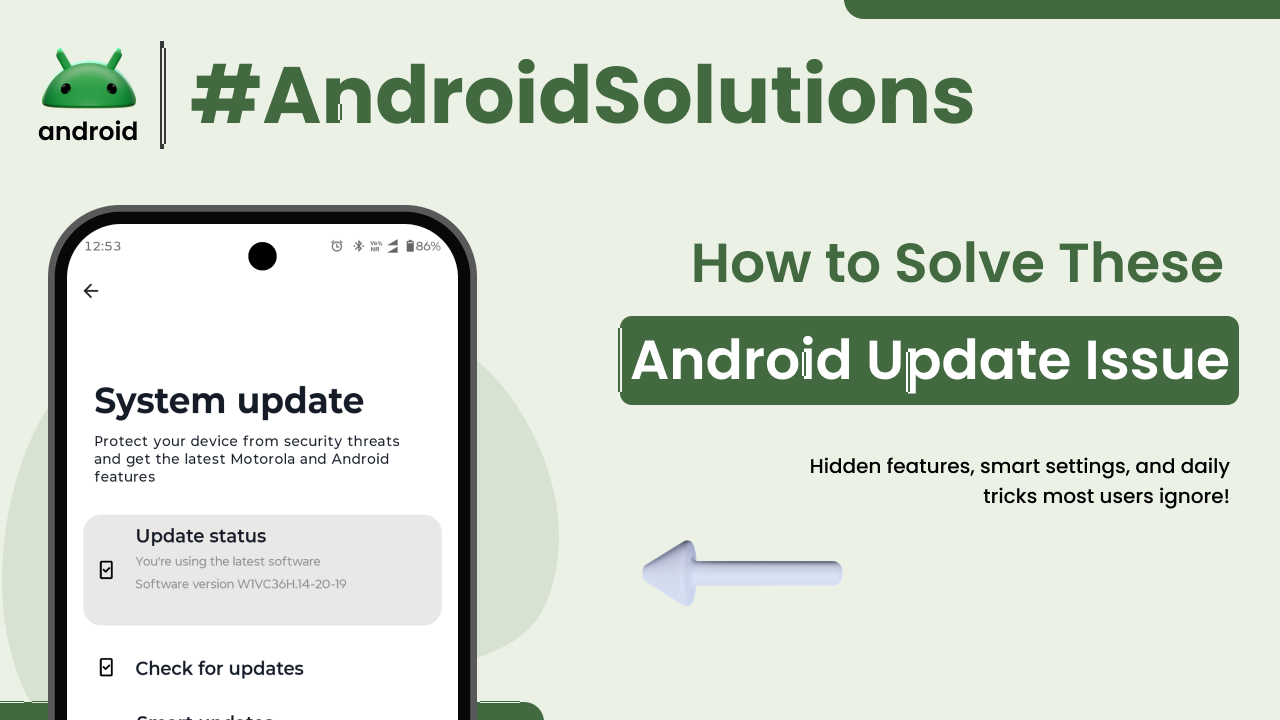
You know that feeling, right? Your Android phone buzzes, a notification pops up saying “System Update Available,” and for a moment, you feel a mix of excitement and dread. Excitement for new features or better security, and dread because, well, updates don’t always go as smoothly as we’d like. I’ve been there countless times, both personally and helping friends and family navigate the sometimes-rocky waters of Android updates. It’s a common experience, and thankfully, most problems have straightforward solutions.
This isn’t about blaming the updates; they’re essential. It’s about understanding the common bumps in the road and how to navigate them so your device stays current and happy. Let’s dig in.
Why Android Updates Are Important (and Sometimes Tricky)
Before we dive into fixing things, let’s quickly touch on *why* these updates matter. Every update, big or small, brings something valuable to your device. Often, it’s about patching up security vulnerabilities that hackers could exploit. Think of it like regularly locking your doors and windows – new digital threats pop up all the time, and updates are your phone’s way of staying secure.
Beyond security, updates often introduce new features, improve existing ones, or boost overall performance. They might make your battery last a bit longer, your camera app run smoother, or even give your device a fresh new look. It’s how your phone evolves.
However, sometimes things can get a bit wonky. An update might clash with an old app, or a tiny glitch could stop the download. These are frustrating, but rarely catastrophic. Understanding that these are just part of the digital landscape helps us approach troubleshooting with a calm mind. After all, the Android operating system is complex, running on a massive variety of devices, which is part of what makes it so versatile, as explained in articles discussing how Android stands apart from other mobile operating systems.
Preparing Your Device for a Smooth Update
An ounce of prevention is worth a pound of cure, right? This old saying definitely applies to Android updates. Doing a little prep work before you hit “Download and Install” can save you a lot of headache later.
First off, **battery life is key**. Never start an update with less than 50% charge. Ideally, plug your phone into its charger. A device running out of juice mid-update can lead to a corrupted installation, which is a significant problem to fix.
Next, **check your storage**. Updates, especially larger ones, need a good chunk of free space. Go into your phone’s settings, look for “Storage,” and see how much you have available. If it’s tight, consider moving photos and videos to cloud storage or a computer, or uninstalling apps you no longer use. I’ve seen countless update failures simply because there wasn’t enough room for the new software.
Finally, **backup your important data**. This is crucial, though often overlooked. While update problems rarely wipe your entire phone, it’s not impossible. A quick backup to Google Drive for photos, contacts, and app data can be a lifesaver. Most Android phones offer easy cloud backup options in their settings. Think of it as insurance for your digital life. Also, ensure you’re connected to a stable Wi-Fi network. Downloading large files over mobile data can be slow and costly, and an unstable connection can lead to corrupted downloads.
When Your Android Won’t Download or Find Updates
Sometimes the update notification just never appears, or it gets stuck halfway through downloading. This is a common starting point for update troubles.
The very first thing to do is a **manual check**. Head to `Settings > System > System update` (or `About phone > Software update` – names vary slightly by device). Tap “Check for updates.” Sometimes your phone just needs a little nudge to look for available software.
If it still doesn’t appear, or the download is stuck, consider your **internet connection**. Are you on a stable Wi-Fi network? Try switching to another Wi-Fi network if possible, or even use mobile data for a moment to see if it triggers the download. A weak or intermittent connection is a frequent culprit.
Another common trick is to **clear the cache and data for Google Play Services and Google Services Framework**. These are system apps that handle many background processes, including update checks. To do this, go to `Settings > Apps & notifications > See all apps`. You might need to tap the three-dot menu and select “Show system” to find these. Locate “Google Play Services” and “Google Services Framework,” then for each, go to `Storage & cache` and tap “Clear cache” and then “Clear storage/Clear data.” *Be aware: Clearing data for Google Play Services might require you to re-enter some account information for Google apps.* After doing this, restart your phone and check for updates again. This often resolves stubborn update visibility issues.
It’s also worth remembering that **updates roll out in stages**. Your friend with the same phone might get it a week before you do. Patience can be a virtue here; it doesn’t always mean something is wrong with your device.
Tackling Update Installation Errors
So, you’ve downloaded the update, but now your phone is refusing to install it, perhaps displaying an error message or getting stuck on the installation screen. This is where things can get a bit more involved, but still manageable.
One of the most frequent reasons for installation failure is **insufficient storage space**. Even if the download went through, the installation process often needs extra room to unpack files and create temporary copies. Double-check your storage again. If it’s really tight, free up more space.
If you’re seeing an error message like “Installation failed” or “Error,” and you’ve already checked storage, try **rebooting your device into Safe Mode**. This starts your phone with only essential system apps, disabling any third-party applications that might be interfering. The method for Safe Mode varies slightly, but usually involves pressing and holding the power button, then tapping and holding “Power off” until a “Reboot to Safe Mode” option appears. Once in Safe Mode, try checking for and installing the update again. If it works, a third-party app was likely causing the conflict. You can then restart normally and start uninstalling recently installed or suspicious apps to find the culprit.
For persistent issues, a **soft reset (reboot)** is always a good first step. Just power off your phone completely, wait a minute, and power it back on. This clears out temporary glitches.
In more extreme cases, if the update consistently fails or causes your phone to get stuck in a boot loop (constantly restarting), you might need to consider a **factory reset**. This is a last resort, as it wipes all data from your phone, returning it to its “out-of-the-box” state. *This is why a recent backup is absolutely critical!* You can usually find the option in `Settings > System > Reset options > Erase all data (factory reset)`. Before you even think about this, make sure you’ve backed up everything important. It’s like pressing the big red button, but sometimes it’s the only way to get a fresh start and allow the update to install properly.
What to Do After a Tricky Update
Hooray! The update installed. But wait, now your battery is draining faster than usual, apps are crashing, or your phone feels sluggish. These post-update blues are surprisingly common.
Often, **battery drain** after an update is temporary. Your phone might be re-indexing files or optimizing new system components. Give it a day or two and a few charge cycles to settle down. If it persists, check `Settings > Battery` to see which apps are consuming the most power. Sometimes, an older app isn’t fully optimized for the new Android version.
For **app crashes or general performance issues**, first, **update all your apps** from the Google Play Store. Developers quickly release updates to ensure compatibility with new Android versions. A simple app update can often fix many post-update stability problems. If a specific app keeps crashing, try clearing its cache and data (`Settings > Apps & notifications > [App Name] > Storage & cache`). If that doesn’t work, uninstalling and reinstalling the app might do the trick.
Sometimes, after a major update, certain system settings might get a bit jumbled. A simple trick I often recommend is to **reset app preferences**. This doesn’t delete your data but resets all disabled apps, default apps, background data restrictions, and permission restrictions. Go to `Settings > Apps & notifications > See all apps`, tap the three-dot menu, and select “Reset app preferences.” This can resolve odd permission-related crashes or notification issues.
If your phone generally feels sluggish after an update, **clear the system cache partition**. This is different from clearing individual app caches. The process varies by phone manufacturer, but generally involves booting into recovery mode (often by holding power and volume down buttons simultaneously from a powered-off state). From the recovery menu, you’ll see an option like “Wipe cache partition.” *Be careful not to select “Wipe data/factory reset” by mistake here!* This clears temporary system files that might be causing conflicts without affecting your personal data.
When All Else Fails: Seeking Deeper Support
You’ve tried everything, and your Android phone is still giving you update grief. Don’t despair! There are still avenues to explore.
First, check your **device manufacturer’s support website**. Brands like Samsung, Google (Pixel), OnePlus, Xiaomi, and others often have dedicated support pages, FAQs, and forums specifically for their devices. They might have acknowledged known issues with a recent update and provided specific workarounds or fixes. For generic Android information and troubleshooting, the official Android website is always a great resource.
Many manufacturers also have **community forums** where users discuss problems and solutions. Searching these forums with your specific phone model and the update version can often reveal if others are experiencing similar issues and what they’ve done to resolve them. It’s a goldmine of shared experience.
If your phone is still under warranty, or the problem seems hardware-related (though less common with updates), **contacting customer support directly** for your device manufacturer is the next logical step. They might be able to offer remote diagnostics or guide you through more advanced troubleshooting steps.
Finally, consider an **authorized service center**. If it turns out to be a deeper software corruption or even a rare hardware issue triggered by the update, professionals can often diagnose and fix it. They have specialized tools and knowledge to reflash firmware or perform other repairs without risking further damage to your device. It’s definitely a good idea to consider professional help if you find yourself getting stuck or worried about making things worse. For broader Android support and resources, you can always visit helpful websites like androidskillspro.in.
Final Conclusion
Android updates are a vital part of keeping your smartphone secure, functional, and equipped with the latest features. While the process is usually smooth, it’s not uncommon to encounter a few bumps along the way. From ensuring adequate battery and storage before you begin, to troubleshooting download failures, resolving installation errors, or even dealing with post-update quirks, most problems have practical, step-by-step solutions. Remember to prepare your device, try simple fixes like reboots and cache clears, and don’t hesitate to seek official support or community help when needed. With a little patience and the right approach, you can keep your Android device running optimally, update after update.