
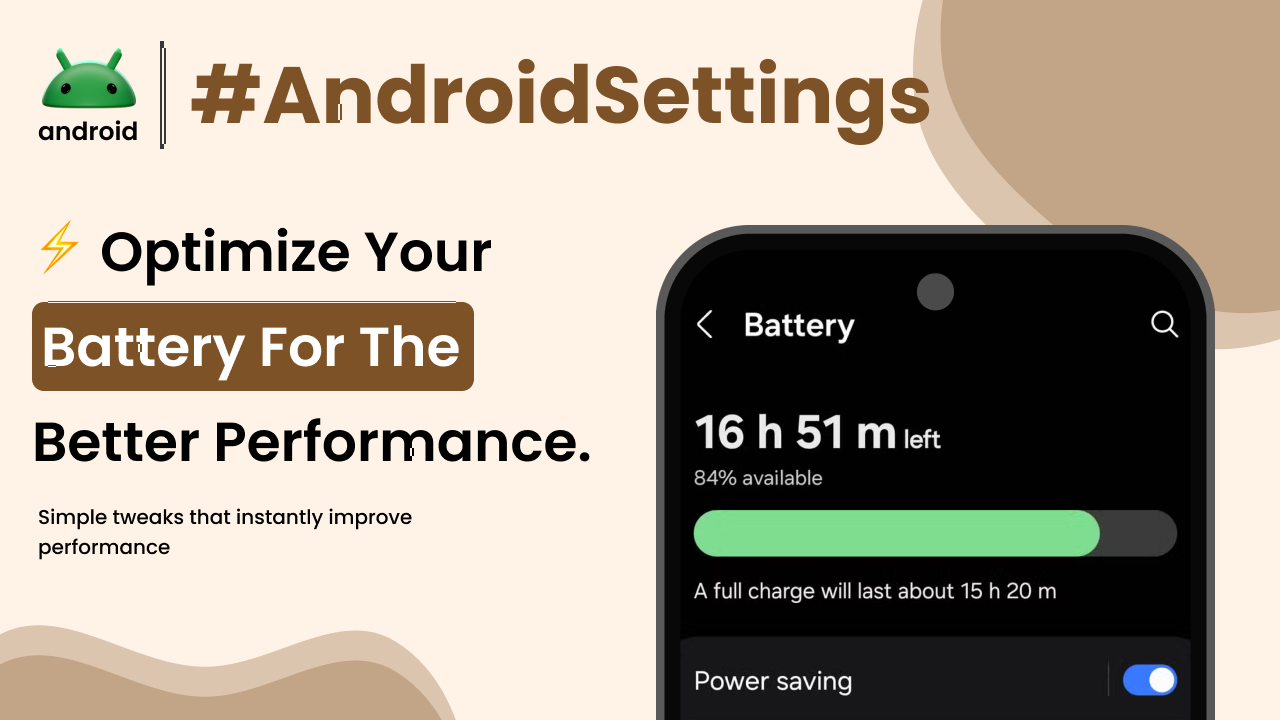
As your Android phone gets older, you might notice it starts to feel a bit sluggish. Apps take longer to open, and switching between them isn’t as smooth as it used to be. It’s a common experience, and thankfully, there are plenty of settings you can tweak to give your device a performance boost. Think of it like tuning up a car; a few adjustments can make a big difference in how it runs.
This guide is all about helping you understand and adjust those settings. We’ll go through them step-by-step, focusing on practical changes you can make without needing to be a tech wizard. The goal is to make your phone feel snappier, more responsive, and just generally more enjoyable to use. Let’s dive into how you can get the most out of your Android device.
Understanding Your Android Device
Before we start tweaking settings, it’s helpful to have a basic grasp of how Android works. Your phone is essentially a mini-computer, and like any computer, it has limited resources. These include processing power, memory (RAM), and storage space.
When you open an app, your phone’s processor works hard to run it. The RAM is used to temporarily store data that the apps need quick access to. Storage is where all your apps, photos, videos, and system files live permanently. If any of these resources are stretched too thin, your phone’s performance will suffer.
Understanding these core components helps explain why certain optimizations work. For instance, freeing up storage or RAM can directly impact how quickly your phone can access the data it needs. If you’re curious about the underlying workings, exploring what Android is and how it works can provide a good foundation.
Managing Apps and Background Processes
One of the biggest drains on your phone’s performance is the number of apps running, especially those in the background. Many apps continue to fetch data, send notifications, or sync content even when you’re not actively using them. This consumes processing power and RAM.
Identifying Resource-Hungry Apps
Most Android versions have a way to show you which apps are using the most battery or data, which often correlates with background activity. You can usually find this in your phone’s Settings menu, often under Battery or Apps.
Look for apps that seem to be consuming a disproportionate amount of resources. Sometimes, it’s an app you use frequently, but other times it might be a less obvious culprit. If you find an app you rarely use that’s always running in the background, it’s a prime candidate for adjustment.
Restricting Background Data Usage
You can often limit how much data an app uses in the background. This setting is typically found within the individual app’s settings under the main Apps menu. For example, you might see an option like Background data or Allow background data usage.
Turning this off for non-essential apps means they’ll only access data when you have them open. This can significantly reduce background activity and free up resources. Just be mindful that disabling background data for apps like email or messaging might delay notifications.
Disabling Unused Apps
If you have apps installed that you never use, they’re just taking up storage space and could potentially run background processes. You can uninstall these apps completely.
For system apps that you can’t uninstall, you can often Disable them. This stops them from running and hides them from your app drawer. You’ll find this option in the app’s settings page, similar to where you’d restrict background data.
Optimizing Display and Visuals
Your phone’s screen and visual effects, while making the user experience pleasant, also consume power and processing resources. Adjusting these can lead to noticeable performance improvements, especially on older devices.
Reducing Animation Scales
Android uses animations to make transitions between screens and apps feel smooth. However, these animations require processing power. If your phone struggles, reducing or disabling these animations can make it feel much faster.
You’ll need to enable Developer Options first to access this. Go to Settings > About phone and tap on the Build number seven times. Once Developer Options are enabled, navigate to Settings > System > Developer options. Look for settings like Window animation scale, Transition animation scale, and Animator duration scale. Setting these to .5x or Off can make a big difference.
Lowering Screen Brightness and Resolution
A brighter screen and higher resolution demand more power from your graphics processor and battery. While you might prefer a bright, sharp display, reducing these can help performance and battery life.
You can manually lower screen brightness in the quick settings panel or set it to Adaptive brightness in Settings > Display. Some phones also allow you to adjust the screen resolution. Lowering it slightly can ease the load on your phone’s hardware, making everyday tasks feel quicker.
Storage Management and Cleanup
Running out of storage space is a common reason for a slow Android phone. When your internal storage is nearly full, the system has less room to operate, leading to sluggish performance. Regularly cleaning up your storage is crucial.
Deleting Unnecessary Files and Apps
Start by uninstalling apps you no longer need, as mentioned earlier. Then, go through your downloads folder and delete any files you don’t require. Check your photos and videos too; consider backing them up to cloud storage and then deleting them from your device if space is tight.
Using Storage Cleaner Tools
Many phones come with built-in storage management tools. These can help identify large files, duplicate photos, or app caches that can be safely cleared. Look for options like Storage in your phone’s Settings or a dedicated app like Files by Google.
Clearing the cache for individual apps can also free up space. The cache is temporary data that apps use to load faster, but it can accumulate over time. You can find this option in the app’s settings under Storage > Clear cache.
System Updates and Maintenance
Keeping your Android system up-to-date is not just about new features; it’s also about performance improvements and bug fixes. Manufacturers often release updates that optimize how the system runs.
Installing System Updates
Regularly check for system updates in Settings > System > System update. Make sure your phone is connected to Wi-Fi and has sufficient battery before starting an update. These updates can sometimes include performance enhancements that you won’t see advertised.
Restarting Your Phone Regularly
It sounds simple, but regularly restarting your phone can clear out temporary files and processes that might be hogging resources. Aim to restart your device at least once a week. This is a quick and easy way to give your phone a fresh start and often resolve minor performance issues.
Other Performance-Boosting Tips
Beyond the core settings, a few other habits and adjustments can contribute to a smoother Android experience.
Managing Widgets and Live Wallpapers
While widgets and live wallpapers can be convenient and visually appealing, they can consume system resources. Widgets constantly refresh for updated information, and live wallpapers use more processing power to animate. Consider reducing the number of widgets you have on your home screens and opting for static wallpapers if you notice a performance drop.
Disabling Unnecessary Syncs
Many apps and services sync data in the background automatically. While useful, too many syncs can slow down your phone and drain the battery. You can manage which accounts sync and how often in Settings > Accounts. You might find that disabling auto-sync for certain apps you don’t need real-time updates for can help.
Keeping Your Home Screen Clean
A cluttered home screen with many app icons, widgets, and folders can sometimes take longer for your launcher to render. Try to keep your main home screens relatively clean. Organizing apps into folders can also help your launcher manage them more efficiently. If you’re interested in deeper customization, exploring general Android skills could be beneficial.
Final Conclusion
Optimizing your Android settings is an ongoing process, not a one-time fix. By regularly reviewing your apps, managing background processes, cleaning up storage, and keeping your system updated, you can significantly improve your phone’s performance. Small, consistent adjustments to settings like animation scales, background data, and display options can make your device feel much faster and more responsive. Don’t underestimate the power of a simple restart either! Taking these steps ensures your Android phone continues to perform at its best, making your daily interactions smoother and more enjoyable.