
It’s easy to think of our Android phones as just tools for entertainment or communication, a quick way to scroll through social feeds or catch up on messages. But what if I told you your device holds the key to actually getting more done, feeling less overwhelmed, and truly boosting your daily productivity? From my own experience, and what I’ve seen countless users discover, it’s not about having the latest phone or the most expensive apps. It’s about understanding and mastering a few core Android skills.
Think about it: your phone is with you almost constantly. If you can turn it into a genuine assistant instead of a constant distraction, you’ve unlocked a significant advantage. This isn’t about complicated tech jargon; it’s about simple, practical adjustments that anyone can learn to make their day smoother and more focused. Let’s dive into some of those skills that genuinely make a difference.
Mastering Notification Management
If there’s one area where Android users can immediately reclaim their focus, it’s with notifications. Our phones are designed to get our attention, but an endless barrage of pings and vibrations can easily derail even the best intentions. Learning to tame this beast is a critical productivity skill.
Start by being ruthless. Every app wants your attention, but not every app deserves it. Go into your phone’s settings – usually under “Apps & notifications” or “Notifications” – and review what’s buzzing your pocket. Ask yourself: “Is this notification genuinely helpful, or is it just a distraction?” For many social media apps, games, or even some news alerts, turning off notifications completely might be the best call. You can always open the app when *you* choose to, not when it demands.
For important apps, like messaging from family or crucial work emails, you can often customize the notification style. Perhaps a silent notification or a subtle banner is enough, rather than a loud sound and vibration. And don’t forget the “Do Not Disturb” mode. Scheduling it for your work hours or during focused tasks can create a crucial pocket of calm. It’s about building boundaries with your device.
Efficient Widget Utilization
Widgets are often overlooked, but they are fantastic shortcuts to information and actions without needing to open full applications. If your home screen is just a sea of app icons, you’re missing out on a powerful productivity booster.
Consider what information you check repeatedly throughout the day. For me, a calendar widget showing my next few appointments is invaluable. I don’t need to open the whole calendar app; I get an immediate visual of my schedule. Similarly, a to-do list widget allows me to quickly add tasks or mark them off directly from the home screen.
Weather widgets help with planning your day before you even step outside. Some apps offer widgets for quick access to specific features, like creating a new note or controlling smart home devices. Experiment with different sizes and apps to find what genuinely saves you taps and keeps key information front and center. It’s about proactive information retrieval, not reactive app opening.
Harnessing Smart Assistant Features
Google Assistant is built right into your Android phone, and knowing how to use it effectively can feel like having a personal assistant in your pocket. It’s far more than just asking for the weather.
The most straightforward productivity boost comes from setting reminders. Need to call someone back in an hour? Just say, “Hey Google, remind me to call John at 3 PM.” Or even location-based reminders: “Hey Google, remind me to pick up milk when I get to the grocery store.” These simple voice commands save you from forgetting crucial tasks and keep your mind clear.
Assistant can also perform quick calculations, convert units, or even help you open apps hands-free if your hands are full. For instance, “Hey Google, open Gmail” gets you straight to your inbox without fumbling. Learning these little vocal shortcuts truly shaves off time and effort throughout the day, especially when you’re multitasking.
Streamlining with Custom Routines and Automation
This is where your Android phone starts to work for you without constant intervention. Many Android devices, particularly newer ones, offer “Routines” or similar automation features, often integrated with Google Assistant. These allow you to set up a series of actions that trigger based on a certain condition.
Imagine this: when you arrive at work, your phone automatically switches to silent mode, turns off Wi-Fi (if you prefer to use mobile data there), and perhaps opens your calendar app. Or, when you plug in your phone at night, it automatically turns on Do Not Disturb, dims the screen, and sets an alarm for the morning. These small automations, once set up, save you countless taps and mental energy every single day.
You can create “Good Morning” routines that tell you the weather, your commute time, and play some news, all with one command or a set schedule. Exploring these automation features, whether in your phone’s settings or through the Google Assistant app, can transform repetitive tasks into effortless background processes. For those looking to dive deeper into managing their Android experience, understanding some of the fundamental concepts can be very helpful.
Navigating Your Phone Like a Pro
Beyond just tapping icons, there are quicker ways to move around your Android device that can significantly speed up your daily interactions. These skills are about efficiency in movement.
Many modern Android phones use gesture navigation. Swiping from the side to go back, swiping up from the bottom to go home, or swiping and holding to see recent apps can feel awkward at first, but once mastered, it’s often much faster than fumbling for on-screen buttons. Take a few days to practice if your phone offers this option.
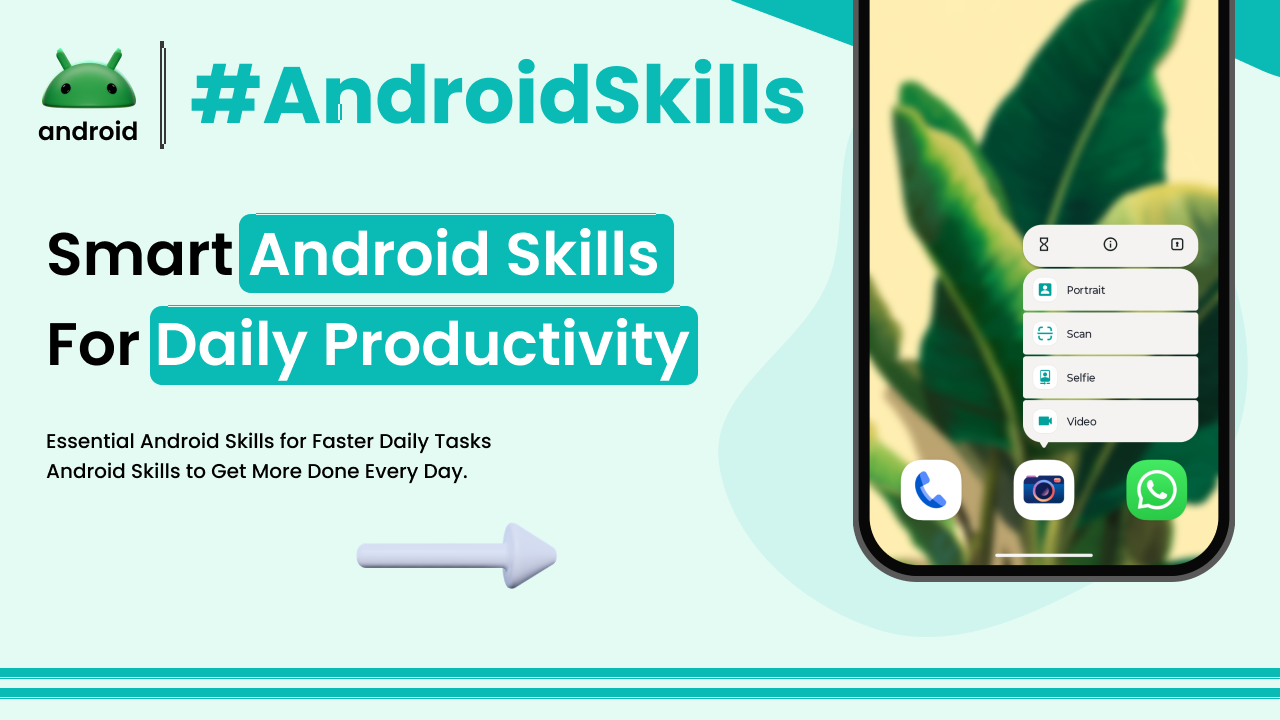
Another huge time-saver is app shortcuts. Long-pressing an app icon often brings up a small menu of quick actions. For example, long-pressing the Camera app might give you options to “Take a selfie” or “Record video.” Long-pressing your messaging app might show recent conversations, allowing you to jump straight into a chat without opening the main app first. This cuts down on unnecessary steps. Learning about various Android settings and features is crucial for unlocking this kind of efficiency.
Also, don’t overlook split-screen multitasking. If you need to reference an email while writing a message, or watch a tutorial while taking notes, split-screen allows two apps to run side-by-side. It keeps you focused on related tasks without constantly switching back and forth, which can be surprisingly disorienting and time-consuming.
Leveraging Cloud Sync and File Management
In today’s connected world, the ability to seamlessly access and manage your files across devices is a massive productivity boost. Your Android phone is a powerful portable computer, and understanding how to use cloud services effectively ties everything together.
Services like Google Drive are not just for backing up photos (though they are excellent for that). They are central hubs for your documents, spreadsheets, and presentations. Learning to save your work directly to the cloud means you can start a document on your laptop, then open it instantly on your Android tablet or phone to continue editing, or even just review it on the go. This flexibility is key to staying productive no matter where you are.
Beyond just saving, it’s about organization. Create folders within your cloud storage for different projects, clients, or personal categories. This makes finding files much quicker than endlessly scrolling through a cluttered “Downloads” folder. When you understand how to structure your digital workspace, your Android device becomes a powerful portal to all your important information, not just a holding place.
Sharing files is also incredibly simple with cloud integration. Instead of attaching large files to emails, you can often share a direct link from Google Drive, controlling who has access. This is particularly useful in collaborative work environments. For more general insights into getting the most out of your Android device, you might find some useful guides at androidskillspro.in.
Final Words
Aaj ke time me smartphone sirf entertainment ka device nahi raha. Agar aap thoda sa time nikal kar apne Android phone ke features ko samajh lete hain, to ye aapki daily productivity ko kaafi improve kar sakta hai. Notification management se lekar widgets ka smart use, Google Assistant commands, automation routines aur cloud syncing jaise features aapko ek organized aur efficient digital life dene me help karte hain.
Sabse important baat ye hai ki aap apne phone ko distraction ki jagah productivity tool bana lein. Jab aap unnecessary notifications band kar dete hain, important widgets home screen par rakhte hain, aur automation routines set karte hain, to aapka kaafi time bach jata hai. Ye choti-choti Android skills aapko zyada focused, organized aur efficient banati hain.
Agar aap daily life me better time management chahte hain, tasks ko jaldi complete karna chahte hain aur phone ka maximum use karna chahte hain, to in Android productivity skills ko practice karna shuru karein. Dheere-dheere aap notice karenge ki aapka phone sirf ek gadget nahi, balki ek personal productivity assistant ban gaya hai.