
In today’s world, our smartphones are practically extensions of ourselves, holding a treasure trove of personal information. From photos and contacts to banking apps and social media accounts, our Android devices are a digital diary. That’s why understanding and properly configuring your Android privacy settings isn’t just a good idea—it’s essential for keeping your personal life secure.
Why Android Privacy Settings Matter So Much
Think about it: every app you install, every website you visit, and every service you sign up for on your phone potentially collects data about you. This data can be used for targeted advertising, but it can also be misused if it falls into the wrong hands. Android, being an open-source operating system, offers a great deal of flexibility, but this also means you need to be proactive about managing your privacy.
Properly configured privacy settings act as a digital gatekeeper, deciding what information your phone shares and with whom. It’s about taking control of your digital footprint and ensuring your personal data stays personal. We’ll walk through the key areas you need to pay attention to.
Understanding App Permissions: The First Line of Defense
App permissions are probably the most critical privacy setting on your Android device. These are the requests apps make to access certain features or data on your phone, like your location, camera, microphone, contacts, or storage.
Controlling Location Access
Your phone’s location is highly sensitive. Many apps request access to your location, and it’s important to be selective. Go to Settings > Location. Here you can see which apps have requested location access.
You’ll typically have options like “Allow all the time,” “Allow only while using the app,” and “Don’t allow.” For most apps, “Allow only while using the app” is sufficient. Apps like navigation services might need “Allow all the time” if you use them in the background, but consider if that’s truly necessary for other apps.
Some apps might ask for precise location. If an app doesn’t need your exact whereabouts, like a weather app that just needs your general area, you can often toggle off “Use precise location” for added privacy.
Camera and Microphone Permissions
Access to your camera and microphone is another big one. Be very careful with apps that ask for these permissions. Do you really need a flashlight app to access your microphone? Probably not.
You can find these settings under Settings > Apps > Permissions Manager (the exact path may vary slightly depending on your Android version and phone manufacturer). Review each app and revoke permissions for camera and microphone if the app doesn’t critically need them to function. For example, a video calling app needs these, but a simple calculator app certainly does not.
Access to Contacts and Storage
Similarly, apps asking for access to your contacts or your phone’s storage need careful consideration. While some apps, like messaging or social media apps, require contact access to function smoothly, many others don’t. Always ask yourself why an app needs this information.
Storage permissions are broad and allow apps to read and write files. While necessary for apps that handle files, like cloud storage or photo editors, be wary of granting this to apps that have no business managing your files.
Google Account Privacy Settings
Your Google Account is often the central hub for many services on your Android phone. Therefore, managing its privacy settings is paramount.
Activity Controls
Google collects data about your activity across its services, such as your search history, YouTube watch history, and location history. You can manage these settings by visiting your Google Account privacy page.
Under “Activity controls,” you can choose to pause or automatically delete certain types of activity. For instance, pausing Web & App Activity means Google won’t save your searches or other activities from Google apps and sites. Location History, if paused, stops Google from building a timeline of places you’ve been with your devices.
It’s a good practice to regularly review these settings and decide what you’re comfortable sharing. You can find this by going to Settings > Google > Manage your Google Account > Data & privacy.
Ad Settings
Google uses the data it collects to personalize ads you see. While personalization can sometimes be helpful, you might prefer to limit it. In your Google Account settings, under “Ad settings,” you can reset your advertising ID or turn off ad personalization altogether.
Turning off personalization doesn’t mean you’ll stop seeing ads, but they will be less tailored to your interests, which can be a trade-off many users are willing to make for increased privacy.
Device-Level Privacy Features
Beyond app permissions and Google account settings, Android offers several built-in features to bolster your privacy.
Screen Lock and Security
This is the most basic, yet often overlooked, privacy setting. A strong screen lock prevents unauthorized physical access to your device. Options include PIN, password, pattern, fingerprint, and face unlock.
Make sure you’re using a strong, unique PIN or password that isn’t easily guessable (like “1234” or your birthdate). Biometric security like fingerprint or face unlock offers convenience but ensure your device has a strong backup PIN or password.
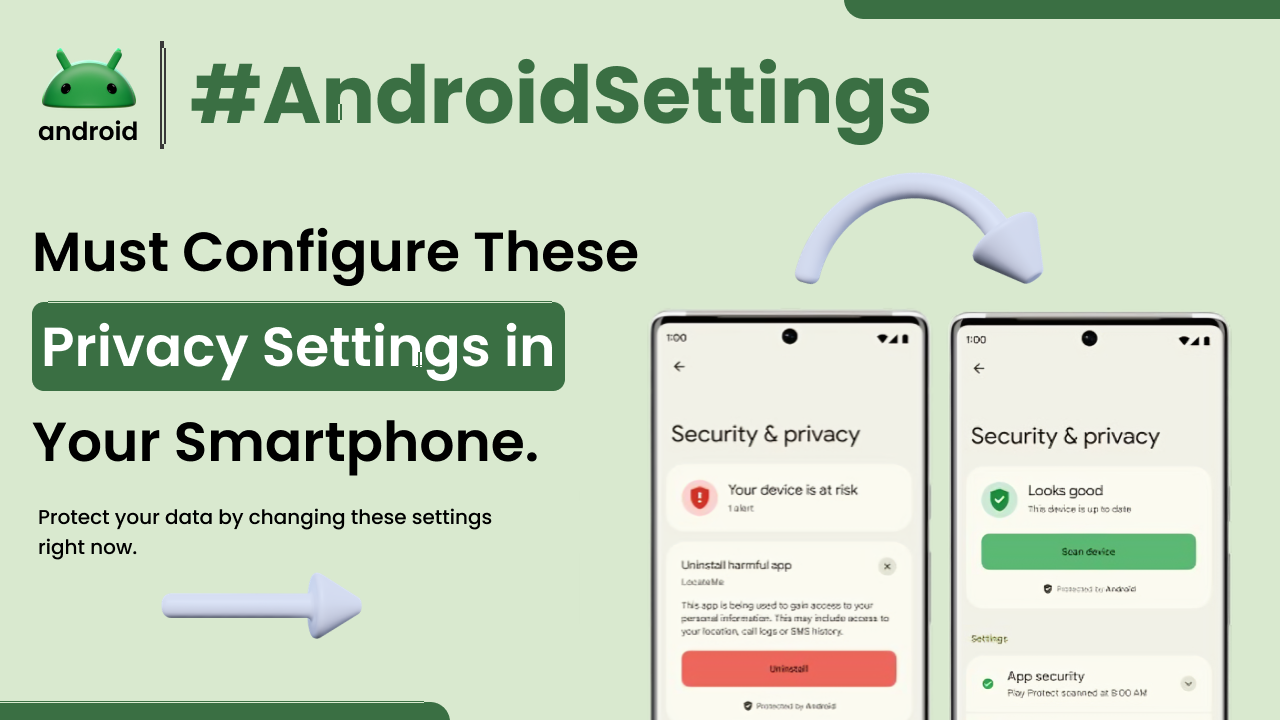
You can find these under Settings > Security & privacy (or similar). This section also allows you to enable features like “Find My Device,” which is crucial if your phone is lost or stolen, letting you lock or erase it remotely.
Notifications on the Lock Screen
By default, your phone might display the content of notifications (like message previews) on your lock screen. This can be a privacy risk if someone glances at your phone while a sensitive notification arrives.
You can control this under Settings > Notifications > Notifications on lock screen. Here, you can choose to hide sensitive content or show no notifications at all on the lock screen, ensuring your private messages stay private.
Privacy Dashboard
Newer versions of Android (Android 12 and later) feature a Privacy Dashboard. This is an excellent tool that provides a clear overview of how your apps are using sensitive permissions like location, camera, and microphone over the past 24 hours.
Access it via Settings > Security & privacy > Privacy Dashboard. It helps you identify any apps that might be overstepping their bounds, allowing you to make informed decisions about their permissions.
Network and Internet Privacy
Your online activities are also a significant part of your digital privacy.
Private DNS
Using a private DNS can add a layer of privacy to your internet browsing. It encrypts your Domain Name System (DNS) queries, making it harder for your internet service provider or others on the network to see which websites you’re visiting.
You can set this up under Settings > Network & internet > Private DNS. You’ll need to enter the hostname of a private DNS provider. Many reputable providers offer this service, often for free.
App Network Access
Some advanced users might want to control which apps can access Wi-Fi or mobile data. This can be useful for conserving data or limiting an app’s ability to communicate online if you don’t want it to.
This setting is often found under Apps > Special app access > Mobile data & Wi-Fi (or similar wording). Here, you can toggle off data access for specific apps. Be cautious, as disabling this for an app might prevent it from working correctly.
Staying Vigilant: Ongoing Privacy Management
Configuring these settings once is a great start, but privacy is an ongoing process. New apps are installed, and app updates can sometimes change permission requirements.
Make it a habit to periodically review your app permissions and your Google Account settings. A quick check once every few months can go a long way in maintaining your privacy. Understanding the basics of how Android works can also empower you to make better-informed decisions about your device’s security and privacy.
Stay informed about Android updates, as Google often introduces new privacy features and improvements. These can often be found on official Android developer blogs or reliable tech news sites.
Final Conclusion
Your Android device is a powerful tool, but it also contains a wealth of personal information. By taking the time to properly configure your Android privacy settings—from managing app permissions and Google account activity to utilizing device-level security features and understanding network privacy—you can significantly enhance your digital security. It’s about making conscious choices regarding the data you share and ensuring your phone remains a private space in an increasingly connected world. Regularly reviewing these settings is key to staying protected.