
Honestly, in today’s fast-paced world, our smartphones are more than just communication tools; they’re our mini-computers, our organizers, and often, our primary way to get things done. I often hear people say they wish they had more time in the day, especially when they’re bouncing between apps trying to manage their daily tasks. The good news is, your Android phone is packed with clever features designed to help you do just that: save time by multitasking more effectively. It’s not about doing more things at once in a chaotic way, but about smarter, smoother transitions between your digital activities.
Think about it: checking an email while watching a tutorial, or looking up a recipe ingredient without leaving your grocery list app. These small efficiencies add up significantly over a day, and even more so over a week. As someone who spends a lot of time helping people get the most out of their Android devices, I’ve seen firsthand how a few simple tricks can transform how you interact with your phone and, ultimately, give you back precious minutes. Let’s dive into some practical skills that can really make a difference.
Mastering the Split-Screen View for Dual Focus
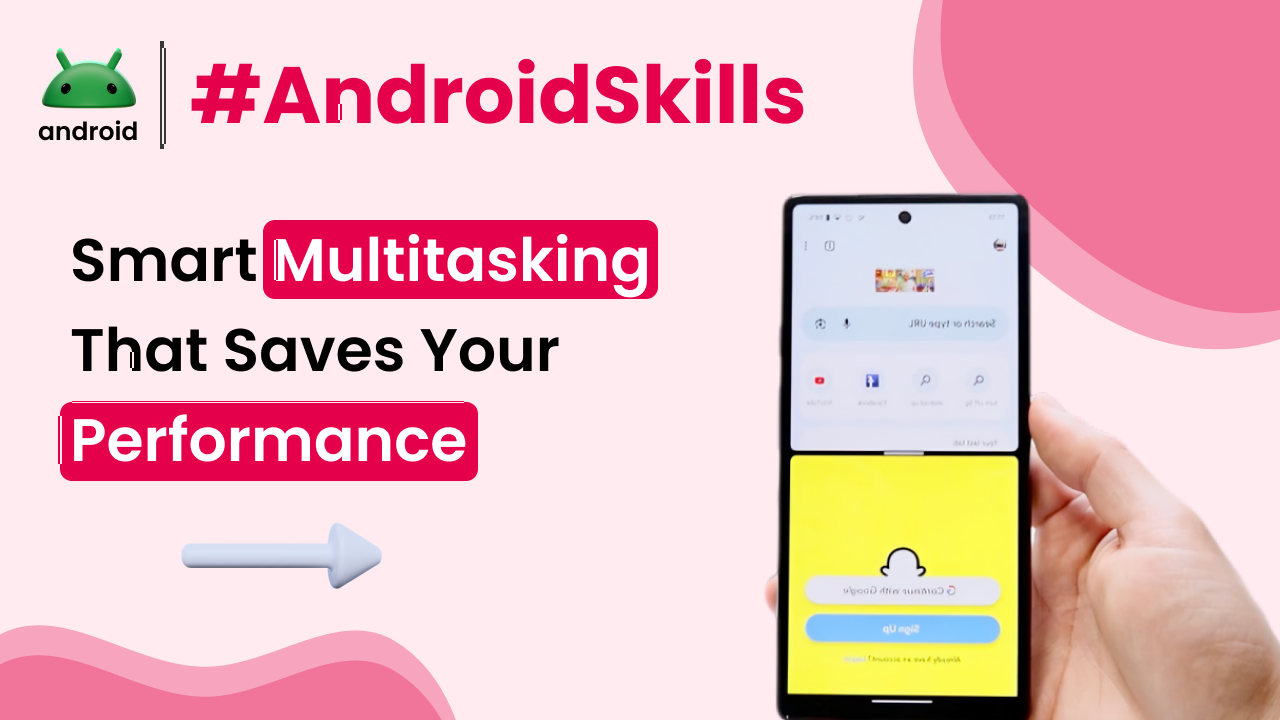
One of the absolute game-changers for productivity on an Android phone is the split-screen view. This feature allows you to run two apps side-by-side, literally dividing your screen in half. It’s perfect for situations where you need to reference information in one app while working in another. For example, maybe you’re taking notes in a document app while a lecture video plays on YouTube, or perhaps you’re copying text from a webpage into a messaging app without constantly switching back and forth.
To activate it, you typically open your first app, then tap the “recents” button (often a square icon, or a swipe-up-and-hold gesture on newer Android versions) to see your recently used applications. Find the app you want to put on top or left, tap its icon at the very top of its preview card, and select “Split-screen.” Then, you just choose your second app from the recents list or your app drawer. You’ll notice a small divider line between the two apps, which you can drag to adjust how much screen space each app gets. It’s a super intuitive way to keep two things in your line of sight simultaneously.
This skill is particularly useful for students, professionals, or anyone who frequently juggles information. Imagine you’re planning a trip: you can have your mapping application open on one side and a browser searching for local attractions or accommodations on the other. No more frantic back-and-forth, just smooth, continuous workflow.
Efficient App Switching with the Recents Screen
The “recents” screen, sometimes called the overview screen, is your quick access panel to all the applications you’ve opened recently. Most Android phones let you bring it up with a tap of the square navigation button or a swipe-up-and-hold gesture from the bottom of the screen. This isn’t just a list; it’s a powerful tool for rapid app navigation.
Instead of going back to your home screen and opening an app from scratch, the recents screen lets you jump directly into any running app. This saves precious seconds. What many users don’t realize is that most Android phones allow you to quickly switch between your last two used apps with a double-tap on the recents button, or a quick swipe left/right along the bottom gesture bar. This is incredibly handy when you’re having a conversation in a chat app and need to quickly pull up information from your browser, then jump right back to the chat. It’s a small movement, but the time saved from not having to navigate through menus or the app drawer really adds up. Think of it as a hotkey for your phone.
Understanding and utilizing this quick switch feature is a fundamental part of efficient Android usage. If you’re looking to brush up on other foundational elements of your Android device, you might find this resource on Important Android Terms Every User Should Know quite helpful for grasping other essential concepts.
Leveraging Pop-Up View and Picture-in-Picture (PiP)
Beyond split-screen, Android offers even more flexible ways to keep an eye on multiple things. Pop-up view, often available on devices from manufacturers like Samsung, allows an app to run in a floating window that can be resized and moved around your screen. This means you could be typing an email, and have a small pop-up window showing your calculator, or even a video player, layered over your main app. It’s less about equally dividing screen space and more about having a smaller, secondary task readily accessible without fully leaving your primary one.
Similarly, Picture-in-Picture (PiP) mode is fantastic for media consumption. When you’re watching a video on YouTube or a movie on a streaming service and then navigate out of the app (like going back to your home screen or opening another app), the video can shrink down into a small, movable window that floats over whatever else you’re doing. This is perfect for casually watching a video while browsing social media or replying to a message. Not all apps support PiP, but many popular video services do. It’s a seamless way to avoid interrupting your entertainment just because you need to quickly check something else.
Smart Notifications and Quick Reply
Notifications on Android aren’t just alerts; they’re interactive tools that can significantly reduce the time you spend jumping into apps. Modern Android allows for incredibly rich notifications. Many messaging apps, for instance, let you directly reply to a message right from the notification shade without even opening the app. This means a quick “Okay, got it!” can be sent in seconds, keeping you in your current app and maintaining your focus.
Beyond quick replies, smart notifications often offer actions like “Archive,” “Delete,” “Mark as read,” or even “Call back” directly from the notification itself. Taking advantage of these immediate actions means you’re addressing urgent items without diving into the full application interface. It’s about making small decisions and taking quick actions directly from where you are, rather than constantly context-switching. Learning to manage your notifications efficiently can greatly improve your overall phone interaction speed.
Widgets for Glanceable Information and Quick Actions
Widgets are often overlooked but are incredibly powerful for saving time. These small, interactive app extensions live right on your home screen, providing glanceable information or quick access to app functions without needing to open the app itself. For example, a weather widget gives you the forecast instantly, a calendar widget shows your upcoming appointments, and a music widget lets you control playback without launching the music player.
Consider a to-do list widget: you can often check off items directly from your home screen as you complete them, saving you the steps of finding and opening the app. For email, a widget might show you the latest messages, letting you decide if something requires immediate attention or can wait. Customizing your home screen with carefully chosen widgets means less time navigating through app drawers and more time seeing or acting on the information you need most. This can really streamline your daily interactions with your device. To learn more about how to optimize your Android experience, visiting the androidskillspro.in homepage might offer further insights.
Leveraging the Power of Smart Text Selection and Drag-and-Drop
Android has become incredibly intelligent about handling text. When you long-press on text, you don’t just get copy and paste options anymore. Often, Android will intelligently suggest actions based on the content. If it’s an address, you might see a “Maps” option; if it’s a phone number, a “Call” option; and if it’s a date, an “Add to calendar” option. Utilizing these smart suggestions can drastically cut down on the steps needed to perform common tasks.
Coupled with this, on many modern Android devices, particularly when using split-screen, you can actually drag and drop text or even images directly between compatible applications. Imagine dragging a photo from your gallery app straight into an email composition window, or pulling a highlighted paragraph from a web browser into a note-taking app. This seamless interaction bypasses the traditional copy-paste dance, making content transfer much faster and more fluid. It truly makes the device feel like a more cohesive workspace rather than a collection of isolated apps.
Custom Gestures and Shortcuts for Personalized Efficiency
Beyond the standard features, many Android devices and launchers offer options for custom gestures and shortcuts that can be real-time savers. These might include:
* **Quick launch gestures:** Drawing a letter on a locked screen to instantly open a specific app.
* **Navigation bar customization:** Reordering or adding extra buttons to your on-screen navigation bar for one-tap access to specific functions.
* **App icon long-press shortcuts:** Many app icons, when long-pressed, offer quick actions specific to that app (e.g., long-press on the camera icon to jump directly to taking a selfie or recording a video).
Exploring your phone’s settings for “Gestures,” “Navigation,” or “Advanced features” can uncover these personalized shortcuts. Setting up just a few of these for your most frequent actions can shave off precious seconds every time you use them, creating a more tailored and efficient Android experience. Remember, the goal is to reduce unnecessary taps and swipes, making your interactions as direct as possible. For more information on official Android features and updates, the Google Android support page is an excellent resource:
Final Conclusion
Harnessing your Android phone’s multitasking capabilities isn’t about becoming a tech wizard; it’s about learning a few smart ways your device is designed to work for you. By regularly employing split-screen, mastering quick app switching, utilizing pop-up views, responding through smart notifications, placing useful widgets, and taking advantage of intelligent text handling and custom shortcuts, you can significantly streamline your daily interactions. These skills don’t just save you a few seconds here and there; they contribute to a smoother, less interrupted workflow, allowing you to accomplish tasks with greater ease and focus. Embrace these practical methods, and you’ll find your Android phone becomes an even more powerful ally in managing your time and attention.