
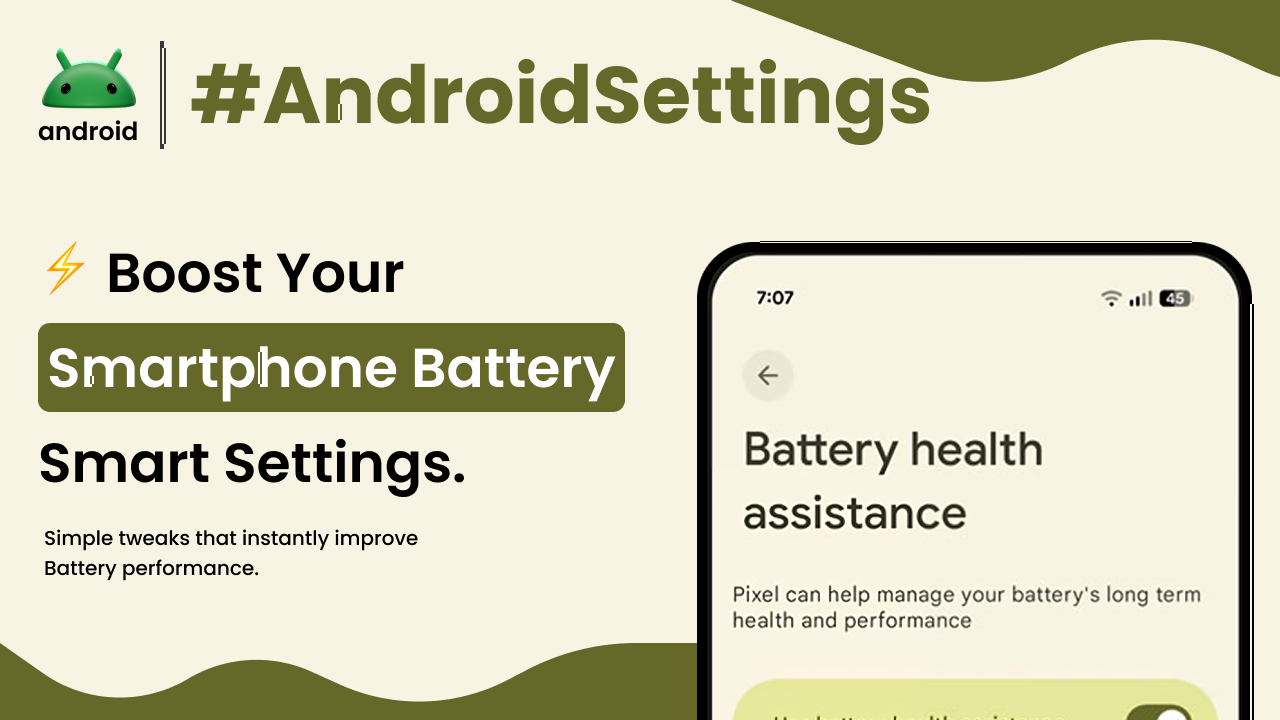
Keeping your Android phone’s battery healthy and understanding how to manage its settings is something we all grapple with. It feels like just yesterday we were charging our phones twice a day, right? Well, thankfully, Android has gotten much smarter about battery management. Exploring the battery settings can seem a bit technical at first, but it’s actually quite straightforward once you know where to look. This guide will walk you through it, step by step, so you can get the most out of your phone’s power.
Understanding Your Battery Usage
The first thing you’ll want to do is figure out what’s actually draining your battery. Most Android phones have a dedicated section in the settings that breaks this down for you. Think of it like a report card for your apps and system processes.
When you go into your phone’s Settings app, look for an option labeled “Battery” or “Battery & device care.” Inside this menu, you’ll usually find a “Usage” or “Battery Usage” section. This screen shows you a list of apps and features, ordered by how much power they’ve consumed over a specific period, often the last 24 hours or since the last full charge.
You might see familiar apps like social media or streaming services high up on the list. Sometimes, though, you’ll see system services or apps you barely use. This is your clue to investigate further. Understanding these basic Android terms will help you navigate these menus better.
Optimizing Battery Usage
Once you know where your battery power is going, you can start making adjustments. Android provides several tools to help you conserve power without drastically changing how you use your phone.
App Power Management
Many apps continue to run in the background even when you’re not actively using them. This is a major battery drain. In the Battery Usage section, tapping on an individual app often reveals options to manage its background activity. You might see choices like “Restricted,” “Optimized,” or “Unrestricted.”
Setting an app to “Restricted” means it will have very limited background activity, which is great for apps you don’t need instant notifications from. “Optimized” is usually the default and works well for most apps, balancing functionality with power saving. “Unrestricted” should be used sparingly, only for apps you absolutely need to run constantly in the background.
Adaptive Battery
Android has a feature called Adaptive Battery. It learns your usage patterns over time and prioritizes battery for the apps you use most, while limiting power for those you rarely use. It’s a smart, set-it-and-forget-it kind of tool.
You can usually find this under the main Battery settings. Make sure it’s enabled. It works quietly in the background, and you might not even notice it’s there, but it can make a noticeable difference in your phone’s longevity throughout the day.
Battery Saver Mode
When your battery level gets low, or even proactively if you know you’ll be away from a charger for a while, Battery Saver mode is your best friend. This feature significantly limits background app activity, reduces screen brightness, and disables some visual effects and animations.
You can typically find Battery Saver in the main Battery settings menu. You can often set it to turn on automatically when your battery reaches a certain percentage, say 15% or 5%. Some phones even offer an “Ultra Battery Saver” mode, which is much more aggressive, disabling almost everything except essential functions.
Screen Settings and Battery
The display is one of the biggest power consumers on any smartphone. Adjusting your screen settings can have a substantial impact on battery life.
Screen Brightness
A brighter screen uses more power. While it’s nice to have a vivid display, especially outdoors, keeping the brightness at a moderate level conserves a lot of energy. Most phones have an adaptive or auto-brightness feature that adjusts the screen brightness based on ambient light. This is usually a good option to leave on.
You can usually find the brightness slider in the Display settings, often accessible directly from the Quick Settings panel by swiping down from the top of the screen. Experiment with turning off auto-brightness and finding a level that’s comfortable for you but not unnecessarily high.
Screen Timeout
This setting determines how long your screen stays on after you stop interacting with it. A shorter screen timeout means the display turns off more quickly, saving power. For example, setting it to 30 seconds or 1 minute is much more efficient than leaving it at 5 minutes.
You’ll find the Screen Timeout setting within the Display menu. Again, finding a balance is key; you don’t want it to turn off so fast that it becomes frustrating, but every minute saved adds up.
Dark Mode
If your phone has an OLED or AMOLED display (common in many modern Android devices), using Dark Mode can actually save battery power. This is because black pixels on these screens are essentially turned off, consuming no energy.
Dark Mode can usually be found in the Display settings, and you can often schedule it to turn on automatically at night. Even if you don’t have an OLED screen, some users find Dark Mode easier on the eyes, especially in low-light conditions.
Other Battery-Saving Tips
Beyond the core battery settings, a few other habits and features can help extend your phone’s battery life.
Location Services
GPS and location services are powerful but can be quite draining. While essential for navigation apps, you might not need them running constantly for other applications. Check your app permissions to see which apps have access to your location and consider setting them to “Allow only while using the app” or disabling location access entirely for non-essential apps.
You can usually find Location settings under the main Settings menu, or sometimes under a “Privacy” or “Security” section. Here, you can manage app permissions and see which apps have recently used your location.
Connectivity Features
Features like Wi-Fi, Bluetooth, and mobile data all consume power. While you need them for most phone functions, turning them off when not in use can help. For instance, if you’re not connected to any Wi-Fi networks and don’t need Bluetooth, toggling them off from the Quick Settings panel can make a small but cumulative difference.
Keep Your System Updated
Manufacturers often release software updates that include battery optimizations. Ensuring your Android operating system and apps are up-to-date can lead to better performance and power efficiency. You can check for system updates in the Settings app, usually under “System” or “About phone.”
Exploring your phone’s capabilities can significantly improve your daily experience. For more on understanding your device, checking out androidskillspro.in offers a wealth of information.
Final Conclusion
Managing your Android phone’s battery doesn’t require being a tech expert. By understanding where to find the battery settings, identifying power-hungry apps, and utilizing features like Battery Saver and screen adjustments, you can significantly extend your phone’s usability between charges. It’s about making small, informed choices that add up to a better battery experience throughout your day.