
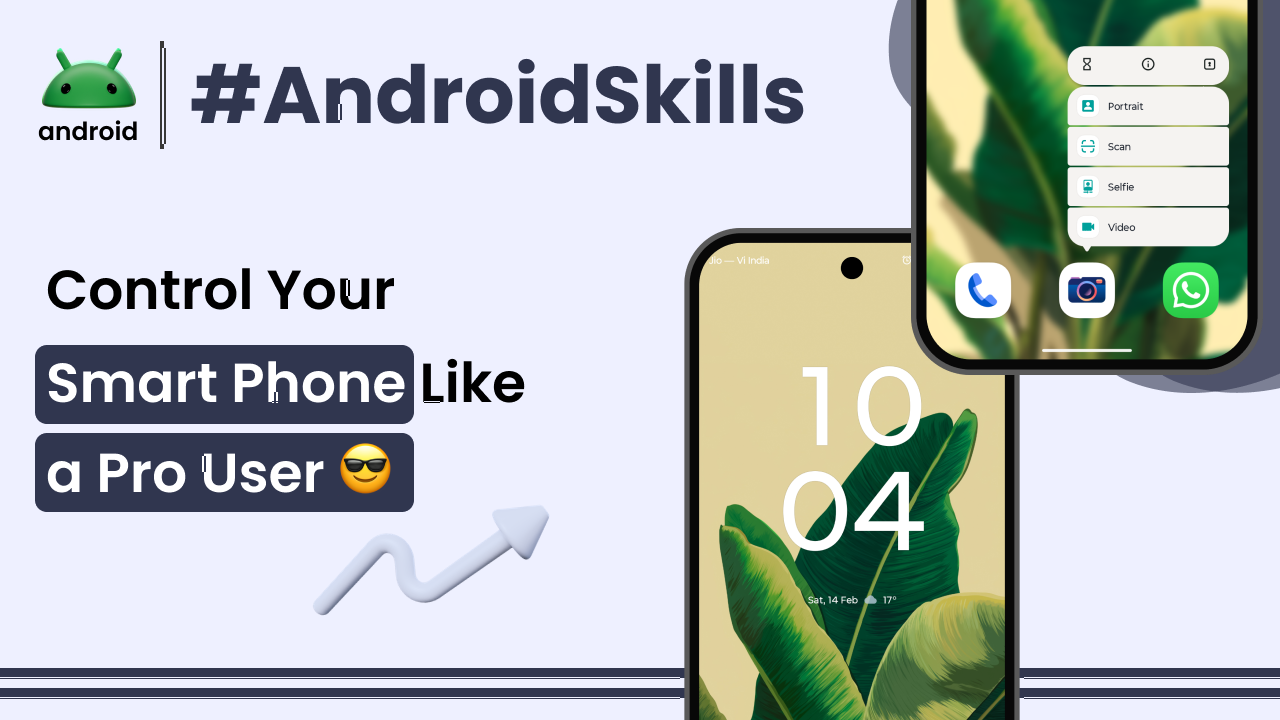
Ever look at someone effortlessly navigating their Android phone, seemingly conjuring apps and settings with a flick of the wrist, and wonder how they do it? It’s not magic, I promise you. It’s about understanding the deeper layers of Android, learning to bend its powerful features to your will, and making your device truly an extension of yourself. As someone who’s spent years diving into the Android ecosystem, I can tell you it’s less about knowing every single obscure setting, and more about developing a smart workflow and truly personalizing your daily mobile experience.
Many of us use our Androids for calls, messages, and a few social apps, but there’s a whole universe of control waiting to be discovered. Moving from just using your phone to truly mastering it can feel like a big jump, but we’ll take it step by step. This isn’t about becoming a developer or rooting your device; it’s about practical, everyday adjustments that make a huge difference in how smoothly you interact with your phone.
Beyond the Basics: Understanding Your Android’s Potential
When you first unbox a new Android phone, it’s often set up in a very generic way. It’s designed to be immediately accessible to everyone, which is great, but it also means it’s probably not optimized for *you*. A pro user sees their Android not just as a gadget, but as a highly customizable tool. This mindset shift is the first step.
Think about the sheer flexibility Android offers. Unlike more closed systems, Android is built on an open-source foundation, which means manufacturers can tweak it, and more importantly, you can too. This ranges from changing your entire visual theme with a launcher to fine-tuning how apps behave in the background. If you’re curious about the fundamental workings of your device, understanding what Android is and how it functions on smartphones can be a great starting point for deeper insight.
One early ‘pro’ move is to really dig into your device’s main Settings menu. It’s not just for connecting to Wi-Fi. This is where the real power lies. Most people just scratch the surface, but a few minutes spent exploring here can reveal options you never knew existed, from display calibrations to subtle system tweaks.
Mastering Notifications and Digital Wellbeing
If there’s one area where Android users often feel overwhelmed, it’s notifications. Our phones buzz, ding, and flash constantly, pulling our attention in a million directions. A true pro doesn’t let notifications control them; they control their notifications.
Start by long-pressing on a notification as it arrives. This usually brings up options specific to that app, allowing you to mute certain types of alerts or even turn off all notifications from that app entirely. It’s about being surgical, not just broadly silencing everything.
Dive into Settings > Notifications. Here, you can see which apps are sending the most alerts and adjust their priority. Some Android versions let you categorize notifications into “channels,” giving you even finer control. For example, a messaging app might have separate channels for “personal messages” and “group chats,” letting you treat them differently.
Then there’s Digital Wellbeing. This isn’t just a fancy name; it’s a suite of tools designed to help you find a healthier balance with your device. Features like “Focus mode” can temporarily pause selected apps, and “App timers” let you set daily limits on how long you use certain applications. Using these tools actively can dramatically reduce distractions and improve your overall focus during the day.
Personalizing Your Home Screen for Efficiency
Your home screen is your digital workspace, and a professional user optimizes it for quick access and minimal clutter. It’s not just about pretty wallpapers; it’s about thoughtful organization.
First, reconsider your launcher. The default launcher that comes with your phone is good, but third-party launchers like Nova Launcher or Lawnchair offer immense customization. They allow for intricate gesture controls, custom icon packs, and grid size adjustments that can make your phone feel brand new and incredibly efficient. Experimenting with these can be a revelation.
Widgets are another powerful tool. Don’t just dump them randomly. Think about what information you need at a glance. A weather widget, a calendar agenda, or quick controls for smart home devices can save you numerous taps. But remember, too many widgets can clutter your screen and even affect battery life, so choose wisely.
Folder organization is key. Instead of scattering apps everywhere, group similar applications into folders. A “Social” folder, a “Productivity” folder, or even folders based on task (“Commute Apps,” “Evening Wind-Down”) can make finding what you need much faster. Use descriptive names for your folders so you don’t have to guess what’s inside.
Unlocking Advanced Settings and Developer Options
This is where things get a bit more “pro.” There are some settings tucked away that can drastically change your phone’s behavior. The most well-known is “Developer options,” which many users don’t even know exists, let alone how to access it.
To enable Developer options, you typically go to Settings > About phone and tap on the “Build number” seven times. A little message will pop up when you’ve unlocked it. Once enabled, you’ll find a new menu item, usually under System or directly in Settings. Don’t just start flipping switches in here; some can have unintended consequences. However, some are incredibly useful.
For instance, “Animation scales” allows you to speed up or slow down the visual transitions on your phone. Setting “Window animation scale,” “Transition animation scale,” and “Animator duration scale” to .5x can make your phone feel noticeably snappier. Another useful setting is “USB debugging,” which is essential if you ever need to connect your phone to a computer for more advanced troubleshooting or data transfer, but it should generally be off when not in use for security reasons.
Understanding these settings means understanding the impact they have. It’s about making informed choices to tailor your phone’s performance, not just randomly changing things. It’s truly a step toward taking control of your Android skills.
Power Management and Battery Optimization Techniques
Battery life is a common concern for everyone. A pro user doesn’t just charge their phone when it’s low; they actively manage its power consumption. Android has gotten much better at this over the years, but your actions still matter.
First, regularly check your battery usage statistics (Settings > Battery > Battery usage). This screen is invaluable. It tells you exactly which apps and system processes are consuming the most power. Often, you’ll find a rogue app draining your battery in the background without you even realizing it. Identifying and then restricting that app’s background activity, or even uninstalling it if it’s not essential, can make a huge difference.
Many modern Android phones have “Adaptive Battery” or similar features. Ensure these are enabled. They learn your usage patterns and intelligently limit battery use for apps you don’t use often. Also, consider the benefits of dark mode, especially if your phone has an AMOLED screen. Dark mode consumes significantly less power on these displays because black pixels are essentially turned off.
Screen brightness is another major battery consumer. Use adaptive brightness if it works well for you, or keep it manually as low as comfortably possible. Little habits like these, consistently applied, add up to significant battery savings.
Enhancing Security and Privacy Measures
Controlling your Android like a pro also means being hyper-aware of your security and privacy. Your phone holds a wealth of personal information, and protecting it is paramount.
Regularly review app permissions (Settings > Apps > [App Name] > Permissions). Do your flashlight app and calculator really need access to your location or contacts? Probably not. Grant permissions only when absolutely necessary, and consider using “Ask every time” for sensitive permissions like location, if available. This gives you more granular control.
Your lock screen is your first line of defense. Use a strong PIN, pattern, or ideally, a fingerprint or face unlock if your device supports it. Also, set your screen to lock immediately or after a very short idle period. For added security, Google provides robust features like Google Play Protect, which automatically scans apps for potential threats. This kind of always-on protection is crucial for defending your data against malware and phishing.
Finally, know how to use “Find My Device.” In case your phone is lost or stolen, this Google service allows you to remotely locate, lock, or even erase your device. Setting it up and knowing how to access it from another device is a fundamental pro move for peace of mind.
Efficient File Management and Storage Tips
Over time, our phones accumulate a lot of digital junk. Photos, videos, downloaded files, and app caches can quickly fill up storage, slowing things down. A pro user keeps their digital living space tidy.
Start by using a dedicated file manager app. While your phone likely has a basic one, apps like Google Files offer more advanced features, including smart suggestions for clearing old files, duplicate photos, and large downloads. Regularly going through your “Downloads” folder and clearing out forgotten items can free up surprising amounts of space.
Cloud storage is your friend. Automatically backing up photos and videos to Google Photos, Dropbox, or other services means you can safely delete them from your device, freeing up local storage without losing your precious memories. For important documents, using Google Drive or a similar service ensures they are accessible from anywhere and safely stored off your device.
Also, clear app caches periodically. While a cache helps apps load faster, it can grow quite large. You can clear the cache for individual apps (Settings > Apps > [App Name] > Storage & cache > Clear cache) or sometimes clear all cached data from the main Storage settings.
The Art of Seamless App Management
Apps are the heart of your Android experience, but managing them effectively is a skill in itself. It’s not just about installing and uninstalling; it’s about understanding their lifecycle on your device.
First, be ruthless with unneeded apps. If you haven’t used an app in months, get rid of it. It’s taking up space, potentially running background processes, and might even be requesting unnecessary permissions. Long-press an app icon and drag it to the “Uninstall” option that appears, or simply go to Settings > Apps and select it from there.
For some pre-installed apps you can’t uninstall, you can often “Disable” them. This effectively freezes the app, preventing it from running or taking up active resources. This is particularly useful for bloatware that comes with some phones.
Understand the importance of app updates. Developers constantly release updates that not only add new features but, crucially, fix security vulnerabilities and improve performance. Keep your apps updated, either automatically or by regularly checking the Google Play Store for pending updates.
Using Gestures and Shortcuts for Quicker Interaction
Speed and fluidity are hallmarks of a pro user. This often comes down to minimizing taps and swipes through clever use of gestures and shortcuts.
Modern Android phones often use gesture navigation instead of the traditional three-button navigation bar. While it takes a little getting used to, mastering gestures (like swiping up to go home, swiping from the side to go back, or swiping and holding for recent apps) can make your phone feel much more intuitive and faster to navigate.
Explore the “Quick Settings” panel. Swiping down from the top of your screen reveals a customizable grid of toggles for Wi-Fi, Bluetooth, flashlight, and more. Arrange these tiles to put your most frequently used controls front and center. A quick swipe and tap to turn on your hotspot is much faster than diving deep into settings.
Many apps offer “App Shortcuts” when you long-press their icon on the home screen or app drawer. For example, long-pressing the Camera icon might give you shortcuts to “Take a selfie” or “Record video.” These can be dragged to your home screen as individual icons for incredibly fast access to specific functions within an app.
Final Conclusion
Becoming a pro Android user isn’t about being a tech wizard; it’s about being thoughtful and intentional with your device. It’s a journey of continuous learning, tweaking, and personalizing. By delving into settings, managing notifications, optimizing your home screen, and understanding your phone’s underlying capabilities, you transform it from a generic gadget into a powerful, efficient, and truly personal assistant. Each small adjustment adds up to a significantly smoother and more enjoyable mobile experience, giving you a sense of control that truly elevates your everyday interactions. So go ahead, explore, experiment, and make your Android uniquely yours. You might be surprised at how much more it can do for you.