
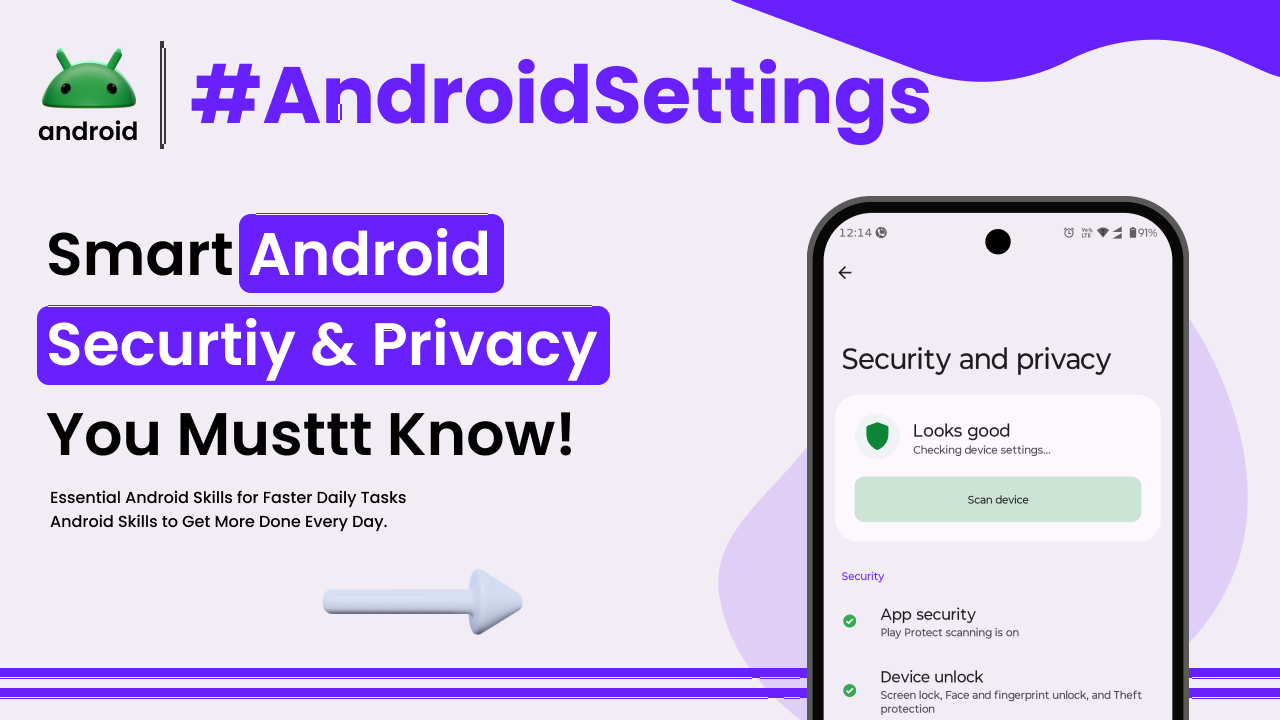
In today’s digital world, keeping your Android phone secure is more important than ever. With so much of our lives stored on these devices—from personal photos and contacts to banking information—a little bit of effort goes a long way in protecting ourselves from prying eyes and potential threats. You don’t need to be a tech wizard to make sure your phone is locked down; many of the best security features are built right in and are surprisingly easy to use.
Think of your Android phone like your house. You wouldn’t leave your doors and windows wide open, right? Securing your phone is much the same. It’s about putting up the right defenses to keep your personal data safe and sound.
Lock Screen Security: Your First Line of Defense
The most fundamental security setting is your phone’s lock screen. This is the first barrier anyone would face if they got hold of your device. Fortunately, Android offers several ways to secure it, moving beyond the simple swipe to unlock.
PINs and Passwords: The Classic Choices
A Personal Identification Number (PIN) or a password is a tried-and-true method. While a 4-digit PIN is better than nothing, a longer, more complex PIN or a strong password with a mix of letters, numbers, and symbols offers significantly better protection. Avoid obvious choices like your birthday or simple sequences like ‘1234’.
Choosing a strong password takes a moment, but it’s a crucial step in preventing unauthorized access. Imagine trying to guess a password for your bank account – you’d want it to be tough to crack.
Pattern Lock: Visual but Potentially Vulnerable
The pattern lock lets you draw a sequence connecting dots on your screen. It can feel more intuitive for some users. However, patterns can sometimes be guessed if they are too simple or if grease marks from your fingers make the path visible on the screen.
If you opt for a pattern, make it intricate and try to use all nine dots. Still, for maximum security, a strong PIN or password is generally recommended over a pattern.
Biometric Security: Fingerprints and Facial Recognition
Most modern Android phones come equipped with fingerprint sensors or facial recognition technology. These are not only convenient but also offer a high level of security when implemented correctly.
Setting up your fingerprint allows you to unlock your phone with a touch. It’s quick and unique to you. Similarly, facial recognition uses your phone’s camera to identify you. Make sure to set these up in a well-lit environment for the best accuracy.
Remember, while convenient, it’s wise to have a PIN or password as a backup in case biometric methods fail or are temporarily unavailable. You can explore these options under your phone’s Security or Lock Screen settings.
App Permissions: Knowing What Your Apps Can Access
Every app you install asks for certain permissions – the ability to access your location, contacts, camera, microphone, and more. Being mindful of these permissions is key to preventing apps from overstepping their boundaries.
You can review and manage app permissions at any time. Go to your phone’s Settings, then find the ‘Apps’ or ‘Applications’ section. From there, select an app, and you’ll see a ‘Permissions’ option. Here, you can see exactly what the app has access to and can revoke permissions that don’t seem necessary for the app to function.
For instance, a simple calculator app really doesn’t need access to your contacts or microphone. If an app asks for permissions that seem unrelated to its core function, it’s a red flag. This practice is fundamental to maintaining strong privacy and understanding important Android terms every user should know.
Google Play Protect: Your Built-in Antivirus
Android phones have a built-in security feature called Google Play Protect. It works in the background to scan apps from the Google Play Store and even those installed from other sources, checking for malicious behavior.
Play Protect automatically scans your apps for harmful content and alerts you if it finds anything suspicious. It also helps keep your apps updated, which is another important layer of security, as updates often include patches for newly discovered vulnerabilities. You can usually find Google Play Protect within your Google Play Store app settings.
Find My Device: Recovering a Lost or Stolen Phone
Losing your phone can be a nightmare, but Android’s ‘Find My Device’ feature offers a way to locate, lock, or even erase your device remotely. It’s a crucial safety net that every user should enable.
To ensure this works, you need to have location services turned on and ‘Find My Device’ enabled in your Google account settings. If your phone ever goes missing, you can log in to your Google account from another device and use the ‘Find My Device’ service to see its last known location on a map. You can then choose to play a sound (even if the phone is on silent), secure the device with a new password, or, as a last resort, erase all data on it.
This feature provides peace of mind, knowing you have some control even when your phone isn’t in your hand. It’s a vital part of your overall mobile security strategy.
Software Updates: Keeping Your System Healthy
Software updates, including security patches, are released by Google and your phone’s manufacturer to fix bugs and close security gaps. Ignoring these updates is like leaving a known vulnerability in your digital home’s defenses.
Make it a habit to check for and install system updates regularly. You can usually find this option in your phone’s Settings under ‘System’ or ‘Software Update.’ Enabling automatic updates is even better, as it ensures you’re protected without you having to remember to check manually.
These updates aren’t just about new features; they are critical for patching security holes that malicious actors could exploit. Keeping your operating system and apps up-to-date is one of the simplest yet most effective ways to stay secure.
Two-Factor Authentication (2FA): Adding an Extra Layer
For your Google account and other sensitive online services linked to your phone, enabling Two-Factor Authentication (2FA) is highly recommended. This adds an extra step to the login process, making it much harder for someone else to access your accounts even if they somehow get your password.
Typically, 2FA involves your password (something you know) and a second verification step, like a code sent to your phone via SMS or an authenticator app, or a fingerprint scan. This significantly boosts the security of your online presence.
You can set up 2FA for your Google account by visiting the security settings on Google’s website. It’s a simple process that dramatically reduces the risk of account compromise.
Secure Wi-Fi and Bluetooth Usage
While convenient, public Wi-Fi networks and Bluetooth connections can sometimes be security risks. Be cautious about what information you access or transmit when connected to unsecured public Wi-Fi.
Avoid accessing sensitive accounts like online banking or making online purchases when on public Wi-Fi. If you must use public Wi-Fi for sensitive tasks, consider using a Virtual Private Network (VPN) to encrypt your connection. Turn off Wi-Fi and Bluetooth when you’re not actively using them, especially in crowded public places, to minimize potential exposure.
Reviewing and Managing Notifications
The notifications that pop up on your lock screen can sometimes reveal sensitive information to anyone who glances at your phone. You can control which apps can display notifications on your lock screen.
Head over to your phone’s Settings, then Notifications. From there, you can often find an option for ‘Notifications on lock screen’ or similar. You can choose to hide sensitive content or disable notifications entirely for certain apps when your phone is locked.
This simple step ensures that private messages or alerts don’t inadvertently become public information when your phone is lying on a table. It’s a small change that adds a significant layer of privacy.
Final Conclusion
Keeping your Android phone secure doesn’t require a deep dive into complex settings. By focusing on the essentials—like strong lock screen security, mindful app permissions, and utilizing built-in tools like Google Play Protect and Find My Device—you can create a robust defense for your personal data. Regularly updating your software and enabling two-factor authentication for your accounts further solidifies your digital safety. Taking these proactive steps ensures that your smartphone remains a private and secure tool for your everyday needs.