
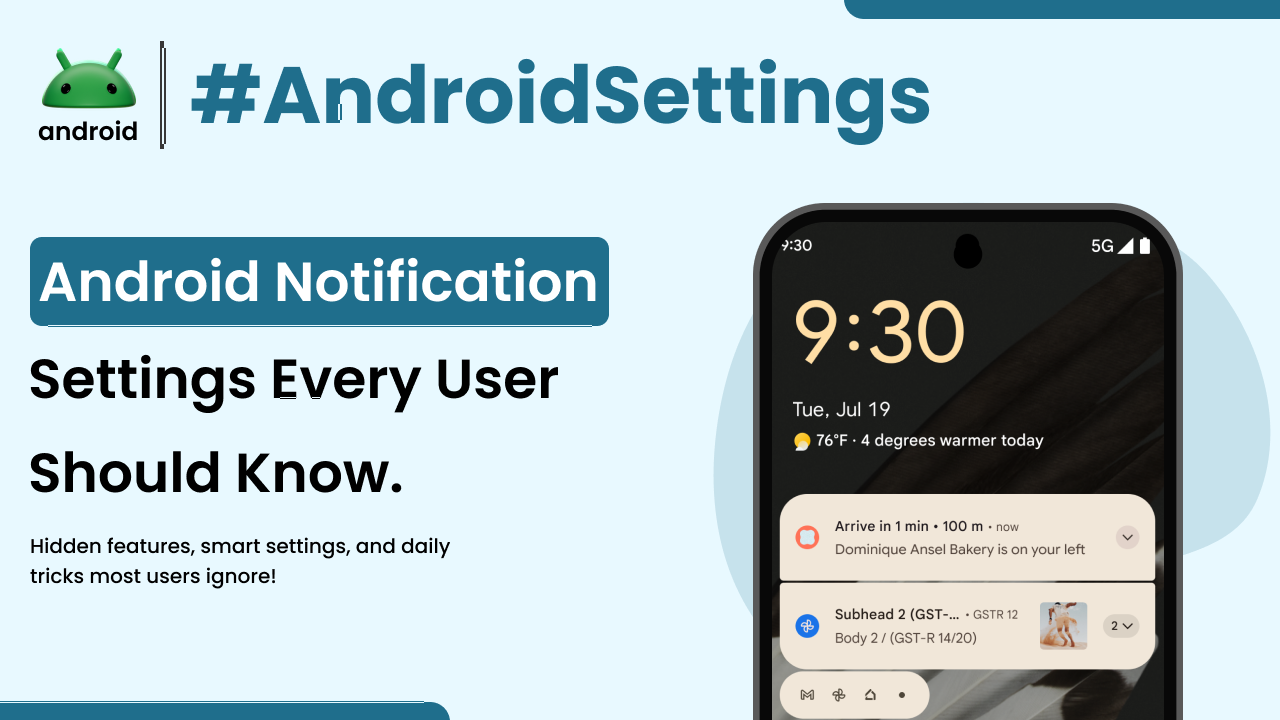
Notifications are a big part of using an Android phone. They’re those little pop-ups, banners, or sounds that tell you something important is happening. Think of them like your phone’s way of saying, “Hey, check this out!” Whether it’s a message from a friend, an update from an app you like, or a reminder about an appointment, notifications keep you in the loop.
But sometimes, you can get too many notifications. It can feel overwhelming, like your phone is constantly buzzing or dinging. The good news is, Android gives you a lot of control over this. You can customize who gets to notify you, how they do it, and even when. This guide will walk you through the basics of Android notification settings, making it easier to manage the flow of information on your device.
Why Managing Notifications Matters
Having too many notifications can be distracting. It breaks your focus when you’re trying to work or relax. Imagine trying to read a book, and your phone buzzes every few seconds with game alerts or social media updates. It can make it hard to concentrate and can even add to stress.
On the flip side, if you turn off too many notifications, you might miss something important. A work email, a message from family, or an urgent alert could slip by unnoticed. Finding the right balance is key to making your phone a helpful tool rather than a constant interruption. Understanding your notification settings helps you achieve this balance.
Understanding Notification Categories
Android has evolved to give you granular control over notifications. Instead of just turning them on or off for an entire app, you can often manage different types of notifications within an app. These are called “notification categories” or “channels.”
For example, a messaging app might have categories for direct messages, group chats, and promotional messages. You can choose to get alerts for direct messages but silence the promotional ones. This level of detail allows you to tailor notifications precisely to your needs. Looking up important Android terms can also help you understand other settings related to your device.
How to Find Notification Settings
Accessing these settings is usually straightforward. The exact path might vary slightly depending on your phone’s manufacturer and the version of Android you’re using, but the general idea is the same. You’ll typically find them within the main “Settings” app on your phone.
1. Open the Settings app. It usually looks like a gear icon.
2. Scroll down and tap on Notifications or Apps & notifications.
3. You should see an option like App settings or See all apps. Tap on this.
4. You’ll see a list of all the apps installed on your phone. Tap on the specific app whose notifications you want to adjust.
App-Specific Notification Controls
Once you’ve selected an app, you’ll see a list of its notification categories. Each category will have its own on/off toggle. For more advanced controls, tapping on a category might reveal options like:
- Importance/Priority: Some phones allow you to set how urgent a notification is. High-priority notifications might make a sound and appear at the top, while low-priority ones might just show up silently.
- Sound: You can often choose a specific sound for each notification category or set it to silent.
- Vibration: Decide if you want your phone to vibrate for a particular type of notification.
- Lock screen visibility: You can control whether notifications from a certain category show up when your phone is locked.
- Banners: This determines if a notification appears as a small banner at the top of your screen.
For instance, if you use a news app, you might want breaking news alerts to be high priority with a distinct sound, but general updates to be silent. This kind of customization ensures you don’t miss critical information while avoiding constant alerts.
General Notification Settings
Beyond individual apps, there are overarching notification settings that affect how notifications behave across your entire system. These often include:
- Do Not Disturb (DND): This is a powerful tool to silence all or most notifications for a set period. You can usually configure exceptions, allowing calls from certain contacts or notifications from specific apps to get through. It’s perfect for meetings, sleep, or quiet time.
- Notification History: If you accidentally dismiss a notification and can’t remember what it was, many Android versions keep a history. You can usually find this within the main Notification settings.
- Battery Saver and Notifications: Sometimes, battery saver modes might restrict background app activity, which can affect how quickly you receive notifications.
- Adaptive Notifications: Newer Android versions might have “adaptive” settings that learn your habits and try to prioritize notifications you’re more likely to interact with.
Exploring these general settings can give you a broader sense of control. For example, setting up a DND schedule for nighttime ensures you get uninterrupted sleep, while still allowing urgent calls to wake you up if configured correctly.
Notifications on the Lock Screen
Deciding what shows up on your lock screen is an important privacy and convenience setting. You can choose to show all notifications, hide sensitive content, or show no notifications at all when your phone is locked. This is useful if you’re in a public place and don’t want others to see your messages or personal information.
To adjust this, look for options like “Notifications on lock screen” within the main Notification settings. You can often set different rules for different apps or categories, giving you fine-tuned control over your lock screen display.
Tips for Better Notification Management
Managing notifications effectively is an ongoing process. Here are a few practical tips:
- Regularly Review App Settings: Take a few minutes each week or month to look through your notification settings. Apps update, and your priorities might change.
- Be Ruthless with Unimportant Apps: If an app constantly sends you notifications you don’t care about, simply turn them off for that app. You can always turn them back on later if needed.
- Utilize “Do Not Disturb”: Schedule DND for times you know you need quiet. It’s a lifesaver for concentration and rest.
- Prioritize Key Apps: Make sure notifications from essential apps (like your primary messaging app or work-related tools) are set up to be easily visible and audible.
- Consider Notification Channels: When available, dive into the notification channels for apps. This is where the real customization power lies.
Think of your phone’s notification system like a helpful assistant. You want it to alert you to important things but not to constantly chatter about trivial matters. By adjusting the settings, you train your assistant to be more effective and less intrusive. For more tips on using your Android device effectively, you can explore androidskillspro.in.
External Resource for Further Information
For the most accurate and up-to-date information directly from the source, you can always refer to the official Android documentation. Google provides comprehensive guides on various Android features, including notifications. Checking their official support pages can offer deeper insights into specific settings or troubleshooting steps. You can find official Android information at source.android.com.
Final Conclusion
Navigating Android notification settings might seem a bit daunting at first, but it’s incredibly empowering once you understand the options. By taking the time to customize which apps can notify you, how they do it, and when, you can transform your phone experience. It’s about making your device work for you, ensuring you stay informed without being overwhelmed. Take control of your notifications, and enjoy a more focused and peaceful interaction with your Android phone.