
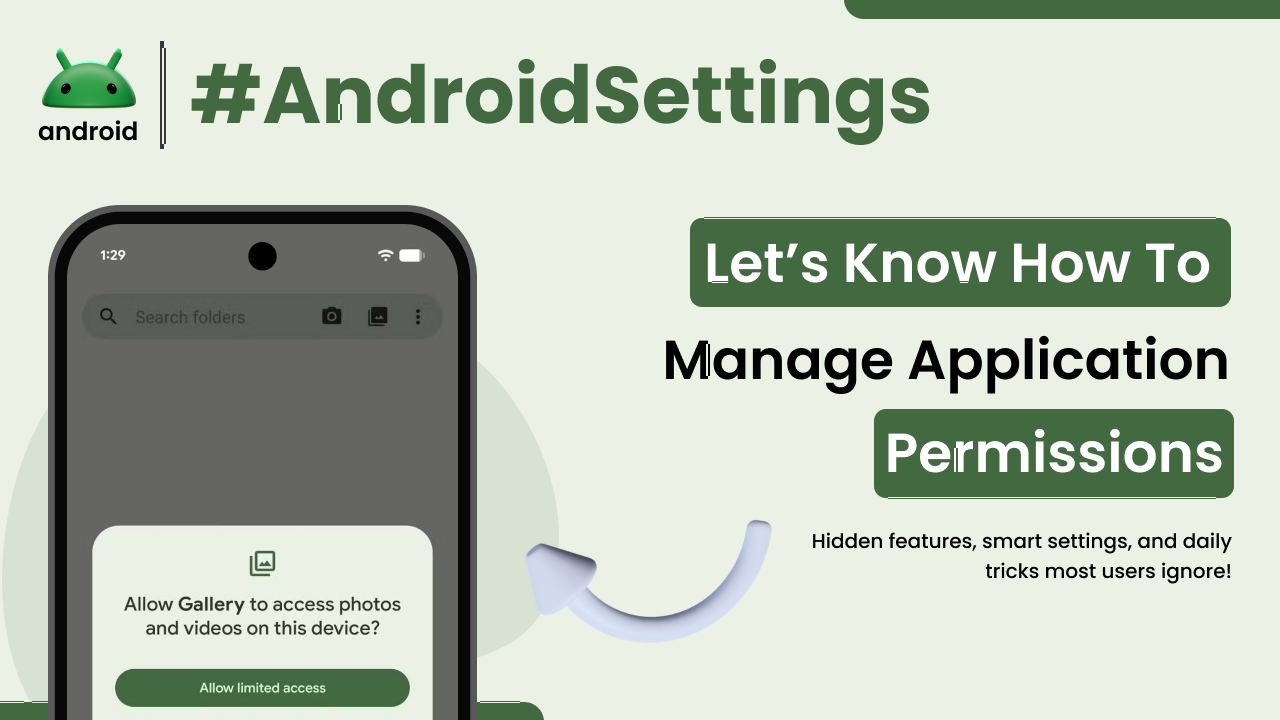
You know how apps on your Android phone sometimes ask for access to things like your location, camera, or contacts? Those are called app permissions. They’re basically requests from an app to use certain parts of your phone or your personal data. It might seem a bit technical, but understanding and managing these permissions is actually pretty straightforward and super important for your privacy and security. Think of it like giving out keys to your house; you want to know who you’re giving them to and what they can do with them.
In this guide, we’ll walk through how to see what permissions an app wants, how to grant or deny them, and how to review and change them whenever you need to. It’s a key part of feeling more in control of your Android device.
Why App Permissions Matter
Every app you install is designed to do something specific, right? To do its job, it might need access to certain features. For instance, a map app needs your location to show you directions, and a camera app obviously needs access to your camera. These permissions allow apps to function as intended.
However, not all apps are created equal, and some might ask for permissions they don’t really need for their core function. This is where the concern for privacy comes in. If an app you downloaded for playing a simple game suddenly asks for access to your contacts or microphone, it’s a good reason to pause and think about why.
By managing app permissions, you’re essentially controlling the flow of your personal data and access to your phone’s hardware. It’s a fundamental aspect of digital safety, ensuring your information stays where you want it and isn’t misused. It also helps prevent apps from slowing down your phone by constantly running in the background for tasks they shouldn’t be doing.
Understanding Different Types of Permissions
Android categorizes permissions into different groups, making it easier to understand what you’re granting access to. While the exact wording might vary slightly across different Android versions and phone manufacturers, the core categories remain largely the same. You’ll typically encounter permissions related to:
- Location: Allows apps to access your device’s location, either precisely or approximately.
- Camera: Lets apps use your device’s camera to take pictures or record videos.
- Microphone: Grants apps access to your device’s microphone to record audio.
- Contacts: Allows apps to read, modify, or add contacts from your address book.
- SMS: Permits apps to send, read, or receive text messages.
- Phone: Gives apps access to make and manage phone calls, read call logs, and access your phone number.
- Storage: Enables apps to access photos, media, and files on your device.
- Calendar: Allows apps to read, modify, or add events to your calendar.
There are many more, but these are some of the most commonly requested and sensitive ones. It’s good to be aware of the general categories so you know what you’re approving.
Checking Permissions for a Specific App
Wondering what permissions an app you’ve already installed is using? It’s easy to check. The process is quite similar across most modern Android phones, though the exact menu names might differ slightly.
First, you’ll usually need to go into your phone’s main Settings. From there, look for an option often labeled Apps, Applications, or App Manager. Once you tap on that, you’ll see a list of all the apps installed on your device. You can usually tap on a specific app to open its details page.
On the app’s info screen, you should find an option that says Permissions. Tapping this will show you a list of all the permissions the app has requested, and whether you’ve granted or denied them. This is your central hub for seeing exactly what each app can do.
This is a great way to do a quick audit of your apps. Sometimes, you might find an app you barely use is asking for a lot of access, which gives you a prompt to re-evaluate if you really need it, or at least to adjust its permissions.
Granting and Denying Permissions
When you first install an app, or the first time it needs to use a specific feature, it will likely prompt you for permission. You’ll usually see a pop-up asking if you “Allow [App Name] to access [Permission Type]?” You’ll have a few options:
- Allow: Grants the app permission to access the requested feature.
- Deny: Refuses the app permission.
- Allow only while using the app: This is a common and often good choice for many permissions. It means the app can access the feature only when you have it open and actively using it.
- Ask every time: Some permissions might offer this option, meaning you’ll get a prompt every single time the app tries to access that feature. This can be useful but also a bit annoying if it happens too often.
It’s wise to grant permissions only when necessary and to choose the most restrictive option that still allows the app to function for you. For example, a photo editing app might need access to your storage to save edits, but it likely doesn’t need your location or microphone. So, you’d grant storage access but deny the others.
Managing Permissions After Installation
What if you initially granted a permission, but now you want to revoke it? Or maybe you missed a prompt and want to go back and set permissions? As we touched on earlier, you can manage these settings anytime through the app’s info screen in your phone’s main settings.
Simply navigate back to Settings > Apps > [Select the App] > Permissions. Here, you can toggle permissions on or off. For instance, if you want to stop an app from accessing your camera, you’d find the Camera permission in the list and toggle it off.
Some permissions have advanced settings. For example, Location permissions often have options for “Allow all the time,” “Allow only while using the app,” or “Don’t allow.” You can choose the most suitable one. Being able to revisit and change these permissions is crucial for maintaining control over your phone’s data.
This is also where you can find permissions that are considered “dangerous” or highly sensitive. Android often flags these to make sure you’re aware of the implications. Understanding these important Android terms can help you navigate these settings with more confidence.
Using the “Permission Manager” Tool
Most Android versions include a centralized tool called the Permission Manager. This is a super handy feature that gives you an overview of all permissions across all your apps, categorized by the type of permission. Instead of checking each app individually, you can go to the Permission Manager and see, for example, which apps have access to your location, or which ones can use your microphone.
You can usually find the Permission Manager within the main Settings menu, often under Privacy or directly under Apps. Once you open it, you’ll see a list of permission types (like Location, Camera, Microphone, etc.). Tapping on any of these will show you which apps have been granted that permission, and which have been denied. You can then tap on an app from that list to change its permission setting for that specific category.
This tool is incredibly useful for a comprehensive privacy check-up. It allows you to quickly identify any apps that might be overreaching and adjust their access accordingly. It’s a proactive way to ensure your device and data are secure. For more on how apps interact with your phone, you might find exploring androidskillspro.in helpful for general Android knowledge.
Permissions and Battery Life
It’s worth noting that some app permissions, particularly those that allow apps to run in the background or constantly access your location, can have an impact on your phone’s battery life. If an app is frequently checking your location or using other features in the background, it consumes processing power and thus drains the battery faster.
By reviewing your permissions and revoking unnecessary ones, you can sometimes help improve your phone’s battery performance. For instance, if a social media app doesn’t need to know your location when you’re not using it, denying that permission can save a bit of battery over time. It’s a small optimization, but every bit helps, especially if you’re far from a charger.
Keeping Your Android Up-to-Date
Google regularly updates Android, and these updates often include improvements to security and privacy features, including how app permissions are handled. Keeping your Android operating system up-to-date is one of the simplest yet most effective ways to ensure you have the latest protections in place.
You can usually check for system updates in your phone’s Settings menu, typically under System or About phone, and then looking for a Software update or System update option. It’s a good habit to check for updates periodically. You can find more information about Android versions and updates directly from the official Android website, which is a great source for authoritative information.
Final Conclusion
Managing app permissions in Android is a fundamental practice for safeguarding your privacy and ensuring your phone operates smoothly. By understanding what permissions are, why they matter, and how to control them, you empower yourself to make informed decisions about the apps you use. Regularly checking an app’s requested access, granting only necessary permissions, and utilizing tools like the Permission Manager are key steps. Remember that keeping your Android system updated also plays a vital role in maintaining security. Taking these simple actions helps you stay in control of your digital life on your smartphone.