
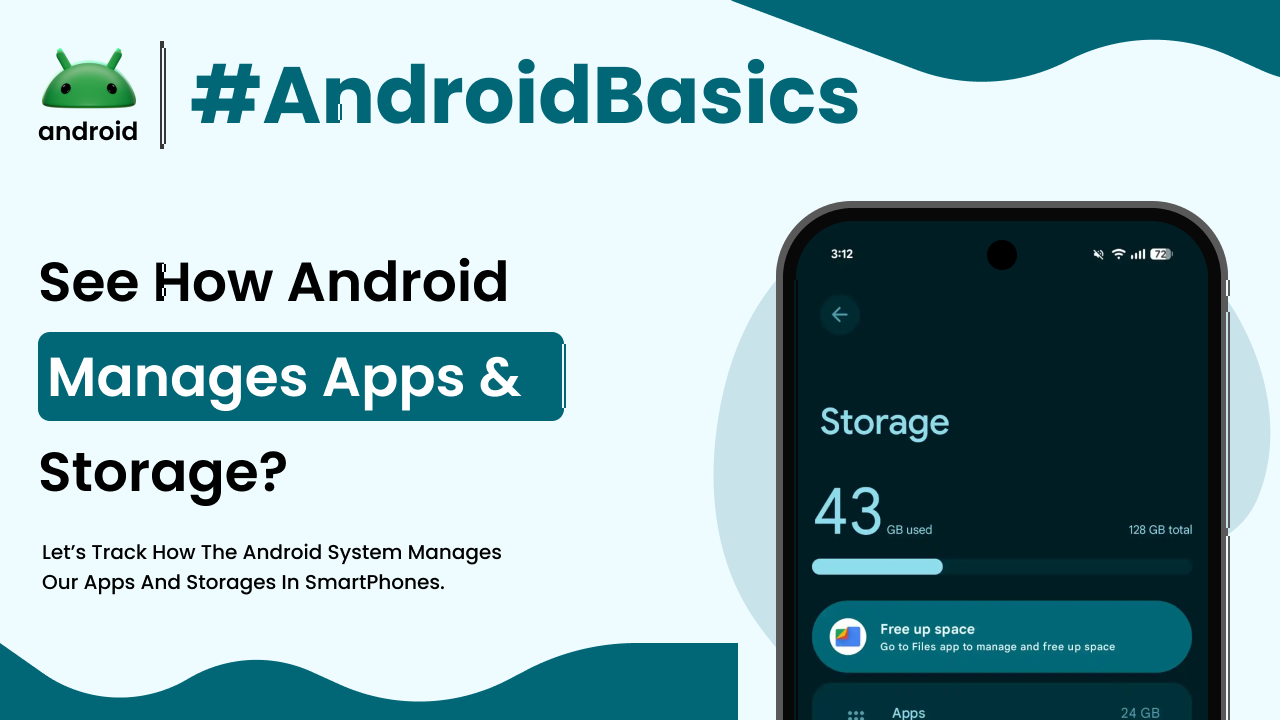
Ever wondered what really goes on inside your Android phone? It’s a pretty smart device, constantly juggling apps, saving your photos, and downloading updates. But sometimes, it feels like it’s bursting at the seams, right? You get those annoying “storage full” notifications, or apps start dragging their feet. Understanding how Android handles apps and storage isn’t just for tech geeks; it’s genuinely helpful for anyone who uses a smartphone daily.
Think of your Android phone as a tiny, bustling city. Apps are the businesses and homes, each needing space and resources. The storage is the land, divided into different zones. And Android itself is the city planner, trying to keep everything running smoothly. If you know a bit about how the city is organized, you can help it stay efficient and prevent slowdowns.
In this guide, we’re going to pull back the curtain a little. We’ll explore how your favorite apps get onto your phone, where all your photos and documents end up, and what Android does behind the scenes to keep things tidy. Plus, we’ll share some practical tips you can use to manage your device better, so you can enjoy a smoother, less cluttered Android experience.
Understanding Android’s Digital Real Estate: Your Device Storage
When you buy an Android phone, one of the first things you notice is its storage capacity – 64GB, 128GB, 256GB, or even more. But what does that number actually mean for you? This storage is your device’s primary memory, where everything from the operating system itself to your apps, photos, videos, and documents lives. It’s often referred to as ‘internal storage.’
Your phone’s internal storage isn’t just one big, empty room. It’s partitioned, meaning it’s divided into several distinct areas. One part is reserved for the Android operating system and its essential files. Another section holds the apps you install, and a significant chunk is dedicated to your personal data. This separation is key to how Android functions reliably and securely.
Think of it like a library. The operating system files are the library’s essential structure – the walls, shelves, and circulation desk. Your apps are the different book collections – fiction, non-fiction, reference. And your personal files are all the books you’ve checked out and brought home. Each has its place, and the system ensures they don’t interfere with each other unless permitted.
Internal Storage: The Heart of Your Phone’s Memory
Internal storage is the fastest and most crucial storage type on your Android device. It’s built directly into the phone and houses everything needed for the device to operate. When you download an app, take a picture, or save a file, it generally goes straight to this internal storage by default.
This type of storage is vital for app performance. Apps installed on internal storage tend to launch faster and run more smoothly because the data access speeds are much higher compared to other storage options. It’s why you always want your most-used apps here.
External Storage: Expanding Your Horizons with SD Cards
Many Android devices offer the option to expand storage using a microSD card. This is what we call external storage. It’s a fantastic feature, especially if you take lots of photos, record videos, or have a large music library. Not all Android phones have an SD card slot, but for those that do, it can be a real game-changer.
An SD card gives you extra room for media files and, sometimes, even for certain apps or parts of apps. While external storage is typically slower than internal storage, it offers flexibility. You can often move files between your phone and the card, or even swap cards to access different collections of media. This modular approach to storage is one area where Android truly shines, offering users a lot of control over their device’s capacity. If you’re curious about how Android’s flexibility compares to other mobile operating systems, exploring how Android stands apart can offer some interesting insights.
Cloud Storage: Your Files in the Sky
Beyond physical storage, there’s also cloud storage. Services like Google Drive, Dropbox, and OneDrive allow you to store files online, accessible from any device with an internet connection. While not physically on your phone, cloud storage works hand-in-hand with your device to free up internal space.
You can upload photos, videos, and documents to the cloud, then delete them from your phone, knowing they’re safely backed up and available whenever you need them. It’s an excellent strategy for managing large media libraries without constantly worrying about filling up your phone’s memory.
How Android Manages Your Apps: From Download to Daily Use
Apps are the heart and soul of any smartphone experience. But have you ever paused to think about what happens from the moment you tap ‘Install’ on the Google Play Store? Android has a sophisticated system in place to manage these applications, ensuring they run efficiently, respect your privacy, and don’t hog too many resources.
The Journey of an App: Installation and Initial Setup
When you download an app, you’re essentially getting an APK (Android Package Kit) file. This file contains all the elements the app needs to install itself on your device – its code, resources, assets, and manifest file. Android then unpacks and sets up these components in specific directories within your internal storage.
During installation, the app requests certain permissions, like access to your camera, contacts, or location. These permissions are crucial for the app to function as intended, but they also highlight an important aspect of Android’s security. You, the user, have control over granting or revoking these permissions at any time, which is a powerful tool for safeguarding your data.
App Data, Cache, and Why They Matter
Every app creates and stores data. This includes your login information, settings, game progress, and any content you create within the app. This ‘app data’ is stored separately from the app’s core installation files, often in a dedicated folder within your phone’s internal storage, associated with that specific app.
Then there’s the ‘cache.’ The cache is like a temporary storage area where apps keep frequently accessed information. For example, a social media app might cache profile pictures or recent posts so they load faster the next time you open the app. While cache data helps apps perform snappily, it can accumulate over time and consume significant storage space. Clearing an app’s cache is often a go-to troubleshooting step for misbehaving apps or when you need to free up a little space.
Background Processes and Battery Life
Android is designed to allow apps to run in the background, which is why you can receive notifications from messaging apps even when you’re not actively using them. However, too many apps running in the background can consume valuable RAM (Random Access Memory) and drain your battery faster. Android has built-in mechanisms to manage these background processes, often putting inactive apps into a ‘doze’ state to conserve power.
Still, sometimes an app can go rogue, consuming more resources than it should. Android’s ‘Digital Wellbeing’ or ‘Battery Usage’ settings can help you identify such apps and, if necessary, restrict their background activity or force stop them. It’s a constant balancing act between convenience and resource management.
Taking Control: Managing Your Storage and Apps Like a Pro
Now that we’ve covered the basics of how Android handles things, let’s get into the practical side. You don’t need to be a tech guru to manage your phone’s storage and apps effectively. A few simple habits can make a world of difference in your device’s performance and longevity.
Cleaning Up App Data and Cache
This is probably one of the easiest and most effective ways to free up space. As mentioned, app cache can grow quite large. Here’s how to tackle it:
1. Go to your phone’s ‘Settings’.
2. Tap on ‘Apps’ or ‘Apps & Notifications’.
3. Select an app from the list.
4. Tap ‘Storage & cache’.
5. You’ll see options for ‘Clear cache’ and ‘Clear storage’ (or ‘Clear data’).
Clearing the cache is generally safe and won’t delete important information. Clearing ‘storage’ or ‘data,’ however, will reset the app to its original state, deleting all your user data for that app. Use ‘Clear storage’ with caution, typically only for apps where you want a fresh start or when troubleshooting significant issues.
Uninstalling Unused Apps
We all download apps we use once or twice and then forget about. These ‘digital dust collectors’ consume space and can even run in the background. Regularly review your app list and uninstall anything you no longer need. It’s surprisingly satisfying and immediately frees up space!
To uninstall an app, you can usually long-press its icon on your home screen or app drawer and drag it to an ‘Uninstall’ option. Alternatively, go to ‘Settings > Apps’ and select the app, then tap ‘Uninstall’.
Managing Your Media Files
Photos and videos are often the biggest culprits when it comes to filling up storage. Consider these strategies:
- Back up to the cloud: Use Google Photos (which often comes pre-installed on Android) or other cloud services to automatically back up your media. Once backed up, you can safely delete the local copies from your phone.
- Transfer to a computer: Regularly move your precious memories to a computer or external hard drive for long-term storage.
- Utilize an SD card: If your phone has an SD card slot, configure your camera app to save photos and videos directly to the card. You can also manually move existing media files to the SD card through your phone’s file manager.
Using Android’s Built-in Storage Management Tools
Modern Android versions come with handy tools to help you manage storage. Often found under ‘Settings > Storage,’ these tools can show you what’s taking up the most space (apps, images, videos, system files, etc.) and suggest files to delete, like old downloads or rarely used apps. Some phones even have a ‘Smart Storage’ feature that can automatically remove backed-up photos and videos from your device after a certain period.
These tools are designed to give you a clear overview and actionable steps, making storage management much less daunting. Don’t be afraid to poke around and see what suggestions your phone offers.
Understanding ‘Other’ and System Files
Sometimes you’ll see a category labeled ‘Other’ or ‘System’ taking up a large chunk of your storage in the storage breakdown. The ‘System’ part is simply the Android operating system and its core files, which are essential for your phone to work. You can’t, and shouldn’t, touch these.
The ‘Other’ category can be a bit more mysterious. It often includes files that don’t neatly fit into other categories, like temporary files from various apps, downloaded content (like maps from navigation apps or offline Spotify music), or files from apps you’ve since uninstalled. While you can’t directly clear ‘Other’ storage, managing individual apps by clearing their data or uninstalling them will often reduce this category over time. Regularly clearing app caches is also helpful here.
Optimizing for Performance: A Bit More Than Just Space
Managing apps and storage isn’t just about avoiding ‘storage full’ warnings; it also directly impacts your phone’s overall performance. A device that’s constantly low on storage can become sluggish, apps might crash more often, and battery life could suffer. This is because the system needs a certain amount of free space to operate efficiently, especially for temporary files and system updates.
Keeping a reasonable amount of free space (aim for at least 10-15% of your total internal storage) allows Android to breathe. It provides room for updates, ensures apps have enough space for their temporary files, and generally makes your phone feel more responsive. It’s a small effort that yields big returns in terms of daily usability.
Regularly cleaning up your phone, much like tidying your physical living space, contributes to a much more pleasant and efficient experience. You’ll spend less time waiting for things to load and more time enjoying what your Android device has to offer.
Final Conclusion
Understanding how Android manages apps and storage might seem a bit technical at first, but it’s truly about empowering you to get the most out of your device. We’ve seen that your phone’s internal storage is its crucial hub, complemented by the flexibility of external SD cards and the boundless potential of cloud storage. Apps, from installation to daily use, generate data and cache files that need occasional attention.
By regularly clearing app caches, uninstalling unused applications, and thoughtfully managing your media files, you can prevent your phone from feeling bogged down. Utilizing Android’s built-in storage tools can simplify this process, helping you maintain a healthy amount of free space. Remember, a well-managed Android device runs smoother, lasts longer, and provides a much more enjoyable user experience. Taking these simple steps will help keep your digital life organized and your phone performing its best. For more helpful information about your device, feel free to visit androidskillspro.in.